Showing posts with label Software. Show all posts

2010-03-09

Virtualize Your Application with VM ware Thin Apps

Virtual means not real, Virtualization means doing somthing Virtualy, with sharing of common resources.
 
Computer these days not meant only for calculation, most of our work depend on it. Most of us spent our valuable time in front of computer to make our work easy, we cant refuse if any body say our success is not possible without computer.
Well, if you want to make your work easier and somewhat more simpler, you will have to purchase a high speed and high processing Computer, which make your work very simple.

Along with  good speed you always face a problem, of Reinstalling Operating System with all  Applications, which always take a long time -- almost 2- 3 hours. So what you do if windows got corrupted. Well i will say, there is a way through which you can save almost 60% of your time during installation.
Now you thinking what Allahdin lamp i got, that i am  saying you can save your 60% time. Its nothing just a thin Application.

VM ware is a common brand which always make their all software on  Virtulisation, means sharing of physical resources without harming physical system, only you have to require some good configuration of system, I remember its VM ware Machine  with it you can run a small network on an only a stand alone system, isn't it imaging.

Lets us Talk  about its tool THIN APP, Just like other application of VM ware (VM ware Machine, server, Esx server, Virtual Desktop ), Thin App is also  share a common platform of Virtulisation. It not only virtually  run your application, even  you can save there license and registration with in the application bundle. There is no need to insert the license again and again on every re-installation of OS, it just make a single Exe file which on click execute the program without installing it to the Hard disk

Let us take a look how to make a Autorun application with the Thin App:--

1.  Install the VM Ware Thin App, on frash system, before to install other Application, when Installation complete click on its Icon to run.
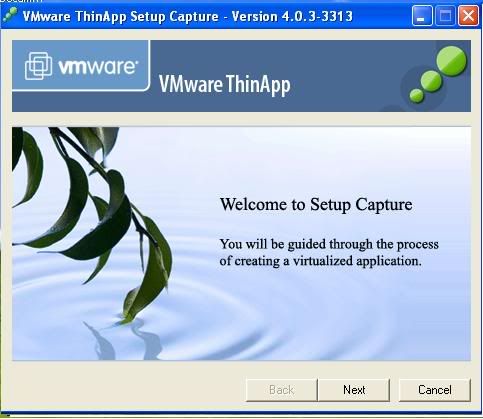

2. Click on NEXT to proceed.
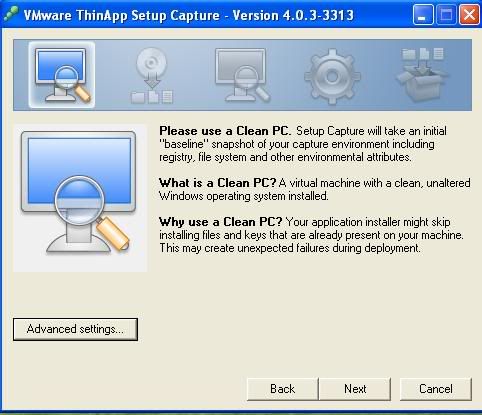
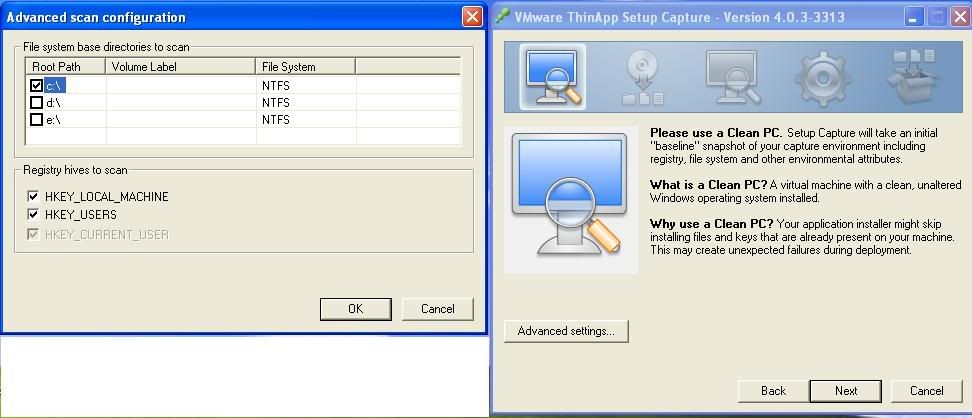
It actually scan your Installation directory (Program files)and registry to proceed further, If you think your system may take a diffrent path during installation then you may click on Advanced Settings, to select other drive also

3.When you select your default drive click at OK and then click at NEXT, 
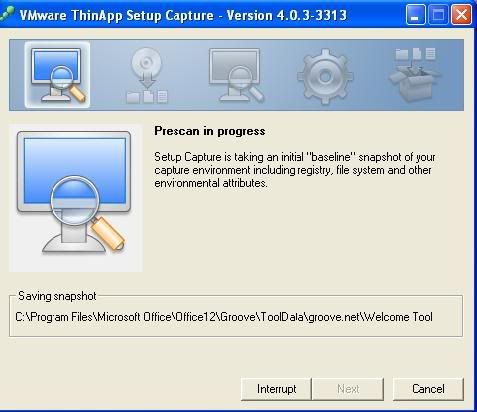
It will start its process of  Prescan, which scan the directory which you allowed it to scan for changes, it will take some time. Once it give you option to click on NEXT then click at NEXT .

4. After a whole process, It will give you a option to Minimize the Thin app window and Install the software.
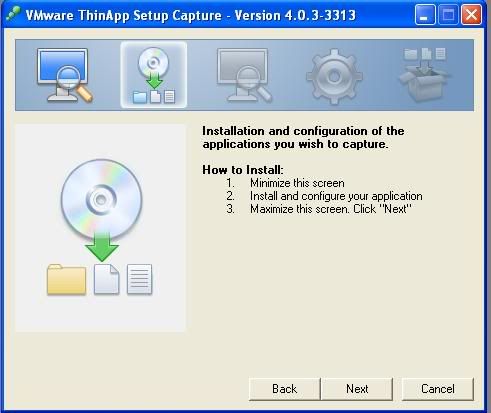
5. I am showing you a Example by just installing a Adobe Acrobat Reader 8, Just Install the software application
Finish the installation.

6. If your software require any product key, serial key   then you should apply it too on the same time before Maximizing the window of  Thin App, other wise Thin App capture only installed application without serial/ key.
After  you done, Maximize the Thin App application, and click Next.
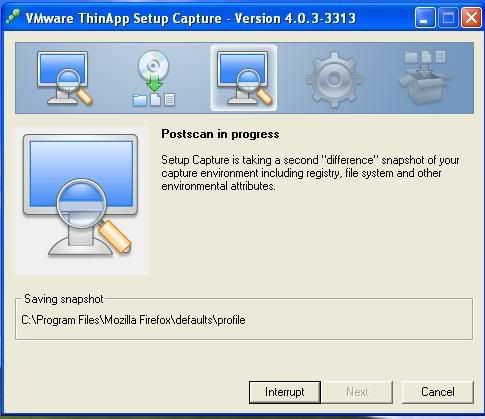
7. It take some time to capture the recently content installed at the system on "Post Scan Process" Just click at Next once it highlight the option of NEXT.

8. Once you click at Next, it will give you an option to select the installation files, it already selected by scanning, if you want a particular file out of all, then you can only choose that one and uncheck remaining.
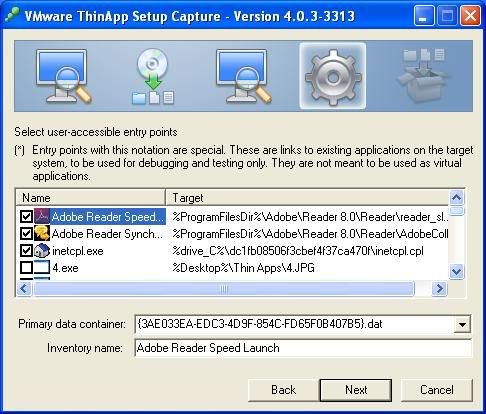
9. Click Next To proceed, You see a window of project just like that.
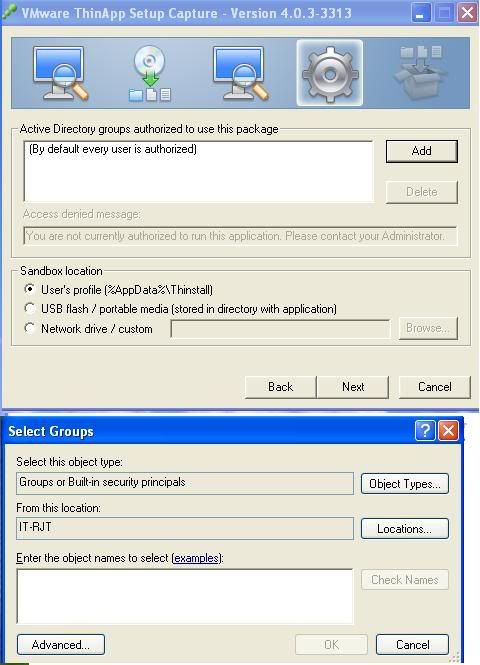

Its nothing just for granting the right to open and execute the application. By default everyone have a right to execute it, you may select different user by clicking at Add. Here you find one more option of Sandbox Location, actually during Executing the program, it make some temp file to execute that, it has a collection of files needed it to execute, it automatically created when you click the application Icon to execute it. select anything as per your desire and click at Next .

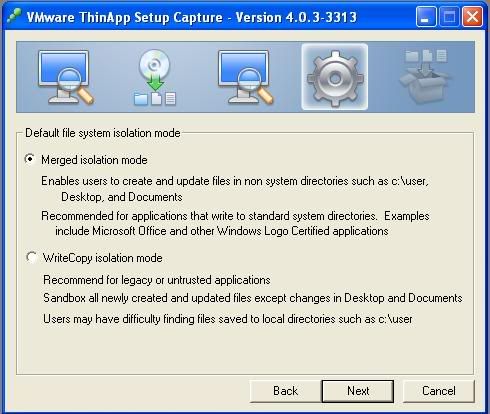
10. It ask you to select the Isolation mode, its nothing just how to integrate with Operating system. Select any option and click NEXT


11. You can save your project at your desired path once it create a directory you never need to follow whole path again you simple have a option to built your application through  only that project folder.
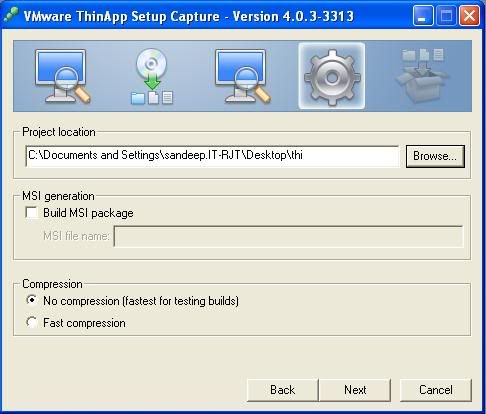


Along with the path, you will get some more options -- like installation of EXE ---you will get an option to built MSI, and Compression method.
One Excited thing I like about this software is that if you select Fast Compression, it never take too time to Execute  the application .

12. Click on Next to  Create the Object,  Finally you get a option to built your EXE, Click on BUILT NOW, and click on Finish.
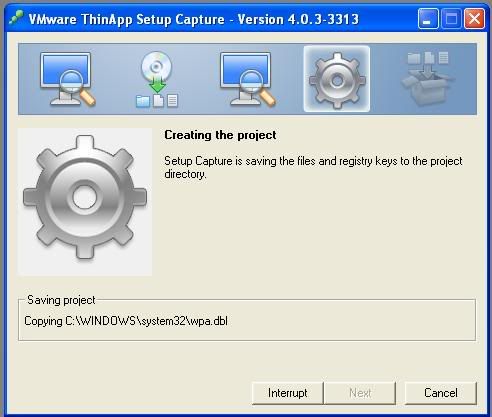
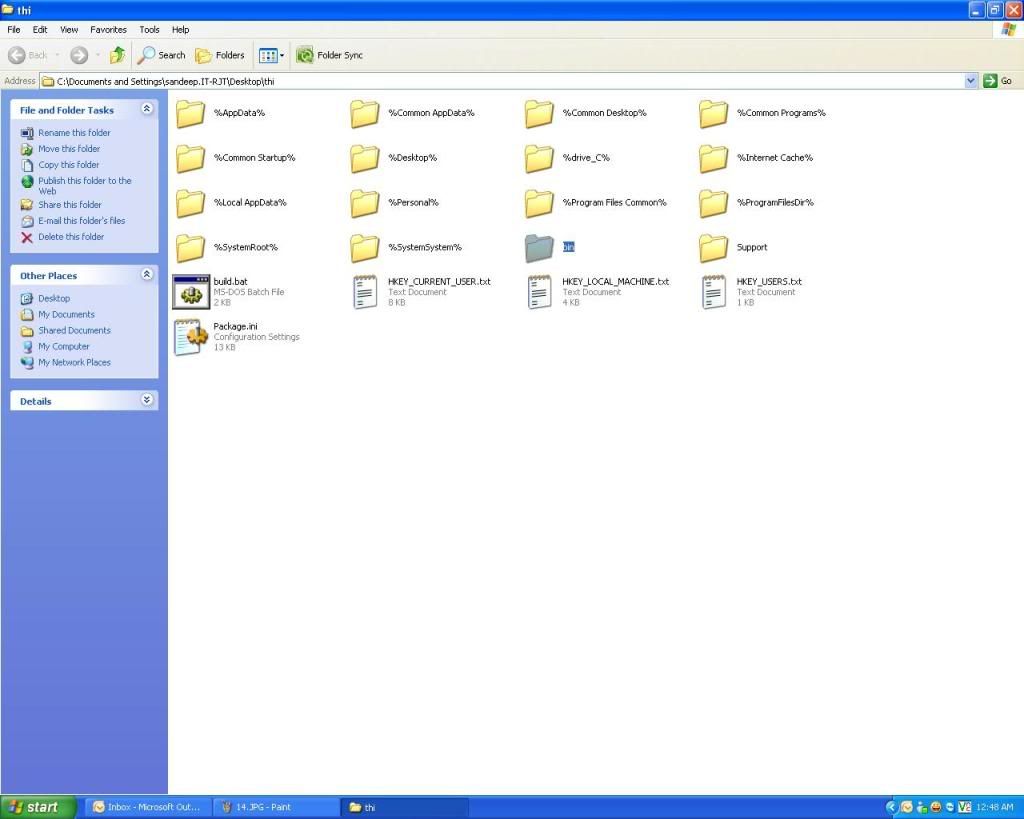
 13. Search the Path where you saved your project, locate the folder BIN, and double click on it to open, you will find your whole EXE which you made.
You can Rename Bin folder as the name of your software and save it some where else.

14. double click on the icon of you application to open it.


As i already told you there is some limitation of Every software, it has also a limitation, if you trying to make EXE of your Drivers then you never do it, it has no effect on updates. If there is some requirement of your software, lets say if you install Office 2010 on windows XP it require XML 6.2, so if you make EXE of office 2010, then you must have a XML. 6.2 installed on the system which you trying to execute the office.

But over all its a very Effective tool to make and share application without installing and without corrupting the registry, of windows.

2009-07-06

Download Your Feverate Linux Destro (Operating system) free.

After a long search I found these Linux destro, some of them are very common, and everyone knows them
RED HAT, FEDORA, UBUNTU etc.

While I tried to give you a short description and a download link so that you can also use it on your PC.


Fedora is a Linux-based operating system that showcases the latest in free and open source software. It is Based on RED HAT Linux and release in every 6 to 9 month period, actually it is a RED HAT BETA release. You can run all command which included in RED HAT.

DOWNLOAD FEDORA


Ubuntu is a community developed, Linux-based operating system that is perfect for laptops, desktops and servers. It contains all the applications you need - a web browser, presentation, document and spreadsheet software, instant messaging and much more.


DOWNLOAD UBUNTU


OPEN SUSE


It is a free and Linux-based operating system for your PC, Laptop or Server. You can surf the web, manage your e-mails and photos, do office work, play videos or music.


DOWNLOAD OPEN SUSE


Mandriva

Mandriva is a developed linux, it include some free and trial software, one of them is WINE which can run windows applications on linux, or any exe file in linux.


DOWNLOAD MANDRIVA

KUBUNTU

Kubuntu is a free, user-friendly operating system based on the K Desktop Environment and on the award winning Ubuntu operating system. With a biannual release cycle and at least 18 months of free security updates for each release, it is the secure, stable computing environment


DOWNLOAD KUBUNTU


Linpus is an innovator and a pioneer in bringing user friendly open source solutions to the mass consumer market.Set up more than 10 years ago, Linpus has worked on open source solutions across numerous platforms and products, building up a reputation for engineering excellence, and evolving into a world class software vendor. We stand out by excelling in key areas important to both consumers and manufacturers alike: creative, highly intuitive user interfaces that are customized on a customer-by-customer basis to add real value; hardware integration expertise ensuring a flawless out of-the-box experience; and, unprecedented levels of on-site support and service.
It is one of my feverate Linux, because it include MPlayer to play media files of any formet and messenger, webcam, and many more great softwares. Many of Laptop companies include it in their machine ( Acer, Ban Q, Asus, Lenovo etc)


DOWNLOAD LINPUS

You can find many more free Linux Destro, but these are very common and you can enjoy it when you use them


2008-09-17

Add/ Remove Software Problem In Fedora or Redhat Linux

Friends, I wanted to share something with you. I have fedora 9 in my home system. I select its complete packages during Installation. But after installation I am unable to find the DHCP server package in it. I tries to install it from my Fedora Linux DVD. but I get some repomd.xml file is missing.
Repomd.xml file is nothing it is a repository file which is store in "/etc/yum.repos.d" directory, you are thinking what is its work, actually this directory is the collocations of some repository files
like fedora.rep, fedora-update.repo, livna.repo etc, these file is useful when you try to update or install software through Internet, every repo file have a specific function, if you open them then you see their is some Internet( ftp ) link. whenever you try the software through the command
#yum install { for example #yum install dhcp}
it connect through the Internet and start installing the package. Yum command help to install compile , remove and give its dependencies file needed for the packages and make it ready to use.
But if you are trying to use through the Linux DVD then it fails and give the error that repomd.xml file is not found
Nothing to worry friends now i find its solution and it is very easy , just follow some simple steps
  • first go to the /etc/yum.repo.d directory and open it by double click on the directory (remember i am telling you the graphical method of doing this, you can also use it through command line)
  • then make a repo file and name it cdrom.repo
  • copy the following content to that file (without the line space)
[CDROM]
name=cdrom
baseurl=file:///media/dvd-rom/
enabled=1
gpgkey=file:///etc/pki/rpm-gpg/RPM-GPG-KEY-fedora
gpgcheck=0
  • line after line and save it . after that open your terminal window and write the commands
  • [root@fedora ~]# mkdir /media/dvd-rom
    [root@fedora ~]#
    [root@fedora ~]# mount /dev/cdrom /media/dvd-rom/
  • remember insert Linux Installation DVD on the DVD rom before these commands
  • after that disable all other repository files (repo files ) only make enable cdrom.repo (Write #yum --disablerepo=> or just click on the repo and at the "enable=1" change it to "0" )
  • and save file then close it
  • Now click at "ADD/ REMOVE SOFTWARE" and click on any software package, try it to remove and install
  • Some time it not directly remove or install from add remove that time you just check which package you want to remove or install
  • then click on the DVD and click on packages and find the name of the package after that copy it and past it in any directory
  • open terminal window
  • and write command "#cd at which package is store for example ( cd /etc/home )
  • #rpm -ivh *.rpm
  • it automatically start installing . You can also do this to reach the DVD/package/ and write command " #rpm -ivh " and enjoy the packages. To install the software through Internet you have to disable the cdrom repo and enable all other repos like livina, fedora , fedora update etc (only change enable=0 to enable=1 )
For More details click at http://fedoraproject.org/ or http://fedoraforum.org/