Showing posts with label Linux. Show all posts

2013-07-16

Script to Migrate Users with home directory in Linux

Generally Scripting help us to save our lots of time, which we spend in our daily day to day activity. It is very easy to create a script if you have a good understanding on command or if you know how to use your skill to make task automatic with shell scripting. But Good scripting not only include commands, it is the combination of logics, commands and your dedication to get the desire result from your script

Lets comes to the main section, Below is the example of simple script which migrate Users with their group and home Directory and  move it on a temp directory , i.e move Then you can easily copy move directory and put it on your new Machine (New Linux Machine). or you can keep as a backup.

Please copy past below script in a file and named it as mig.sh,and give the executable permission to your script, I am considering here you know how to run scripts

Please use root user to run this script, becasue normal user will not able to read the password file.

********************Script begin you can copy past after this line ********************

 #!/bin/bash

#### This script will use to migrate the users login and Data  ######

id=500
pasd=/etc/passwd
grp=/etc/group
shad=/etc/shadow
grpshad=/etc/gshadow

### Make a Dir to put the migration files #####

mkdir move

#### Getting Details of the users comes between id and 65534 and move it in a file#######
awk -v L=$id -F: '($3>=L) && ($3!=65534)' $pasd >move/passwd.mig

#### Getting details of Groups between  id and 65534 and move it in a file #########

awk -v L=$id -F: '($3>=L) && ($3!=65534)' $grp >move/group.mig

##### Now Copy Shadow File ##########
awk -v L=$id -F: '($3>=L) && ($3!=65534) {print $1}' $pasd | tee - |egrep -f - $shad >move/shadow.mig

########## Copy group shadow  file ################
 cp $grpshad move/gshadow.mig

 ###### Create a Backup of User Home Dir by compressing it with tar ############

awk -F: '{print $1}' move/passwd.mig >move/temp.file
awk -F: '{print $6}' move/passwd.mig >move/temp2.file

for user in `cat move/temp.file`
do 
ho=`grep $user move/temp2.file`
tar -zcvpf move/$user.tar.gz --directory=`dirname $ho` $user 
tar -zcvpf move/$user-mail.tar.gz --directory=/var/spool/mail $user
done

rm-rf /move/temp.file temp2.file

******************************Script End please don't copy this line **********************

Now login as root by executing command below 
#su -l

and set permission to the mig.sh 
#chmod a+x mig.sh

to run the above script you can use command 
#sh mig.sh
or 
#./mig.sh

Once you get the output of your script in move folder copy it on new Linux machine and start moving the home dir of users on desired location.

Please Note default location of user home dir is /home, if you required any other location then you can manually change the home with your newhome or you can use sed  to change all at once in passwd.mig file 

In New Linux machine 
Login as a root in new machine, and go to move directory, now we are going to add the account's one by one.
#cd move

untar all the migrated home dir present in the form of user.tar.gz  in /home by executing command one by one for all the users 

Please note :- you can untar the dir after adding user entery in /etc/password which is mention in next line.
#tar -zxvpf  user.tar.gz -C /home/

Now copy passwd , shadow and group, gshadow files in case if anything goes wrong you can move to the original again  
#cp /etc/passwd /etc/passwd.orig
#cp /etc/shadow /etc/shadow.orig
#cp /etc/group /etc/group.orig
#mv /etc/gshadow /etc/gshadow.orig

and append the data

# cat passwd.mig >>/etc/passwd
#cat shadow.mig >>/etc/shadow
#cat group.mig >>/etc/group
#mv gshadow.mig  /etc/gshadow

Now restart or logout your machine to see the changes.

Thank you for Reading my full post 


2009-07-06

Download Your Feverate Linux Destro (Operating system) free.

After a long search I found these Linux destro, some of them are very common, and everyone knows them
RED HAT, FEDORA, UBUNTU etc.

While I tried to give you a short description and a download link so that you can also use it on your PC.


Fedora is a Linux-based operating system that showcases the latest in free and open source software. It is Based on RED HAT Linux and release in every 6 to 9 month period, actually it is a RED HAT BETA release. You can run all command which included in RED HAT.

DOWNLOAD FEDORA


Ubuntu is a community developed, Linux-based operating system that is perfect for laptops, desktops and servers. It contains all the applications you need - a web browser, presentation, document and spreadsheet software, instant messaging and much more.


DOWNLOAD UBUNTU


OPEN SUSE


It is a free and Linux-based operating system for your PC, Laptop or Server. You can surf the web, manage your e-mails and photos, do office work, play videos or music.


DOWNLOAD OPEN SUSE


Mandriva

Mandriva is a developed linux, it include some free and trial software, one of them is WINE which can run windows applications on linux, or any exe file in linux.


DOWNLOAD MANDRIVA

KUBUNTU

Kubuntu is a free, user-friendly operating system based on the K Desktop Environment and on the award winning Ubuntu operating system. With a biannual release cycle and at least 18 months of free security updates for each release, it is the secure, stable computing environment


DOWNLOAD KUBUNTU


Linpus is an innovator and a pioneer in bringing user friendly open source solutions to the mass consumer market.Set up more than 10 years ago, Linpus has worked on open source solutions across numerous platforms and products, building up a reputation for engineering excellence, and evolving into a world class software vendor. We stand out by excelling in key areas important to both consumers and manufacturers alike: creative, highly intuitive user interfaces that are customized on a customer-by-customer basis to add real value; hardware integration expertise ensuring a flawless out of-the-box experience; and, unprecedented levels of on-site support and service.
It is one of my feverate Linux, because it include MPlayer to play media files of any formet and messenger, webcam, and many more great softwares. Many of Laptop companies include it in their machine ( Acer, Ban Q, Asus, Lenovo etc)


DOWNLOAD LINPUS

You can find many more free Linux Destro, but these are very common and you can enjoy it when you use them


2009-04-25

Install Windows Over Linux

Friends, as i already mention on my previous post that today laptops or Desktop of branded company  have preloaded Operating system, so  you must have to make some space or new partition on them  to save your data.
If  Linux is installed in your PC as a preloaded OS, and you don't want to delete that from your computer, but want windows to install over LINUX , then my post really help you.
Some one said its very difficult. and you have to install windows first then install linux like fedora, Red Hat over the windows. But nothing like that. just read my Posting  you will succide 100%.

Lets take a example that Preloaded OS is Fedora Linux ,and you have 25GB Hard disk , It has two partitions like this

1       107M                          /boot
2     24.93G                          LogVol00

logical volume is the default volume on fedora/redhat linux , beceause it is very easy to  manage ( You can easily add and remove partition/ or space within it ).

To install  windows you must make some space out of  logical volume, Please  read my previous post to make some space or new partition in  Preloaded Environment

Shrink LV (Logical Volume ) default Installation group of Fedora/ Red Hat linux    and     Resize Pre loaded Operating system 


After reading it  you are able  make some space to install  windows over it .
If you are trying to install windows server 2003, Vista or any other latest OS of windows, then just boot the CD/DVD and find the free space, and make partition   on it and follow the online instruction, or its documentations

 Rember only choose  free space which you created, to install new OS, otherwise you lost your Linux.  after booting from windows CD, it will display  two partition one is around 100mb, other is  windows fault tolrence don't touch them. Just after these two you see free space, just click on that and make partition

 If you want to install 98, Windows 2000, or XP then may be it not show you any option directly  to create  partition or may be windows XP not boot from its CD then what to do.. don't worry. Just follow these steps, you need windows Xp CD , and a 98 CD..

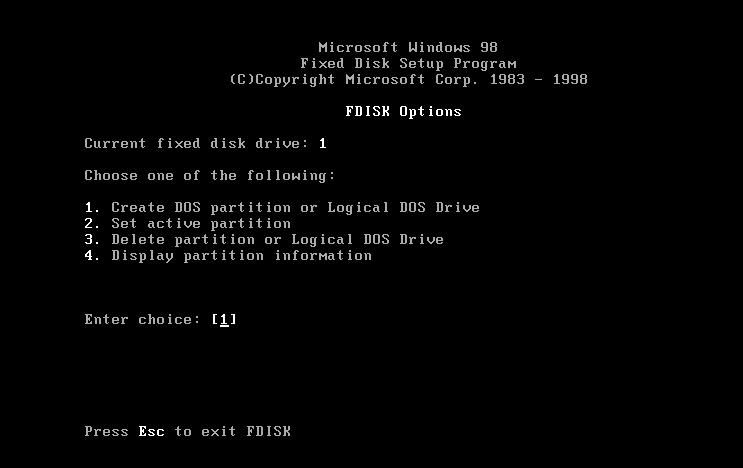
  • Boot 98 CD with CD Rom Support. when you reach at A: promt then type "fdisk"
           A:>fdisk
          click 'y' to go inside the fdisk when it ask to do so
  • After a screen appear like this 


        just press 4 to display  the forth option"Display partition Information"
  • It will display  information of the partition of your hard disk, also display the status of partition ( active, dos / non dos and total space etc) .

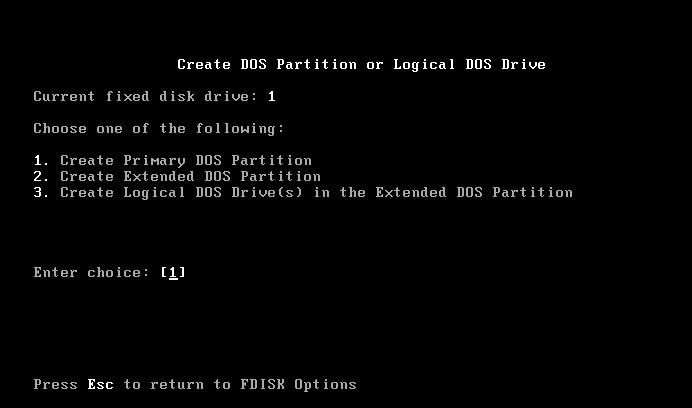
  • see the partition which are active... it show  two partition which are active  then click "escape" button of  keyboard and press 1 to creat new partition


It will ask  "Do you want to give it full space to creat new partition........." press 'y' if you want to give it full space or 'n' to customize the partition size.
  • Now it creat a new partition click  ok "may be it says it will need to restart the window to continue then press "ESC" and go at A:\> and write 'Restart' then restart the PC and boot again with 98 CD with above  step 
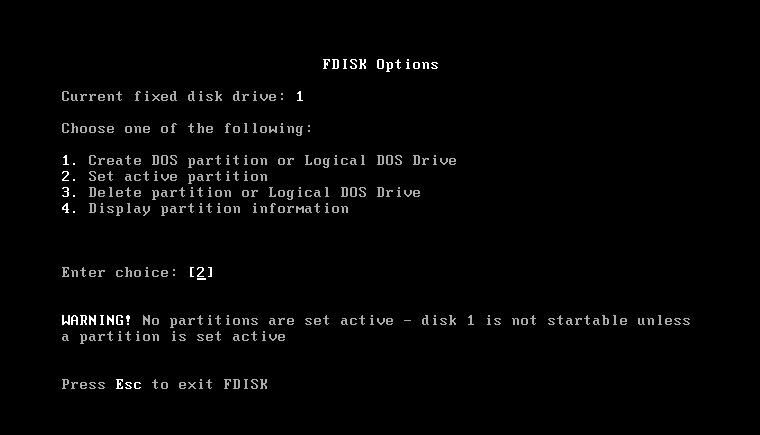
  • At A:/>  type fdisk and now press 2 to make your partition active .


and press '3' to make 3rd partition active which u created recently.
now click on "Esc" again "Esc" to come out from Fdisk wizard and write command format c: with switches /q and /s
/q for quick and /s for transfer system file.
A:/>formate c: /q/s
  • It may say that quick format will not done, make it normal format, just press 'y' for yes, and  find your CD Rom drive for windows 98 other then C: like here its E:
Note:- it will alocate a RAM drive after C: drive and after Ram drive you will find your CD ROM drive so don't confuse just check it by typing command 'dir' if it display the directory 'win98' that means it is your CD ROM drive.
  • Now enter command "cd win98"  to change directory and "smartdrv" to install smartdrive
          E:\>cd win98
         E:\win98>smartdrv
  • Half of your work is done, now remove CD and insert Windows XP CD,  find their Drive letter and write command 'cd i386' and 'winnt'
       E:\.>cd i386
       E:\i386>winnt

 
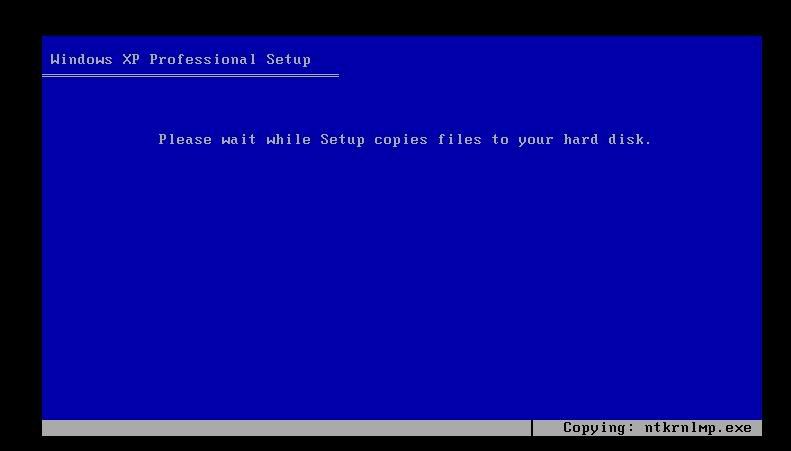
  •  It will take some time to copy the files and after that it will restart and boot the system give it some time, now nothing to do just follow the steps  on the screen


Note:- Don't format the partition, if it ask to format then just choose the option "Leave partition without format"

After windows Install then Insert your linux CD/DVD and click on Upgrade installation and just rebuilt the boot loader after that both linux and windows will work.

Note:- to know how to get linux back read " Recovering Grub Boot Loader "

If you do step wise then you definetly Install windows over linux, without loosing your preloaded linux .

2009-04-23

Shrink LV (Logical Volume ) default Installation group of Fedora/ Red Hat linux

Hi, friends, as I mention on my earlier post that today Linux is also going to popular OS. So the Computer vender generally ships preloaded OS like Vista, LINUX etc to the laptop or Desktop,  and only give a single partition for work on which already system files are Installed  with it they generally hide one partition called recovery Installation . If you get any problem get attacked by virus then with a single button you get back to  your previous stat at which you purchased your PC. But what about your precious data , well it is lost.
If you get Windows as a Preloaded OS then you are very Lucky because you get many stuff or software related to create /resize partition (on internet some are free) , which can make a room ( resize your existing partition and make new partition) to save your data. And by chance you get Linux like Fedora red hat SUSE etc  then you definitely suffer more  for that I already mention what to do,  for detail see my previous Resizing the Preloaded Operating system

Now come to the point If you try to resize the LV partition (Logical Volume) on generally fedora/ red hat  then you has to do some extra command line steps. Don’t worry these are easy as GUI, but you have to do some labor.
 follow these steps for easy configuration:-- 
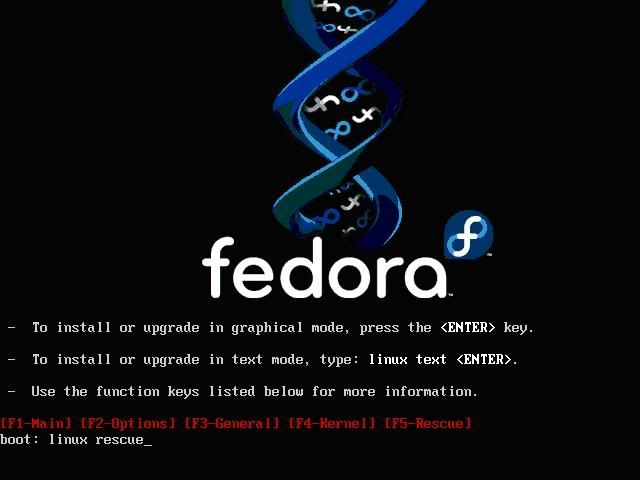
  • Boot Fedora Installation CD/DVD  at rescue mode


It take some time to go to rescue mode after boot , select keyboard layout and language,  After that it ask you to choose the “NETWORK SETUP” so just skip it because there is no need to setup Network
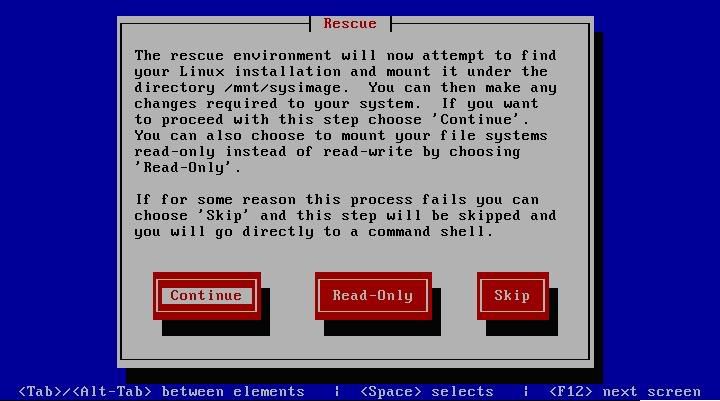
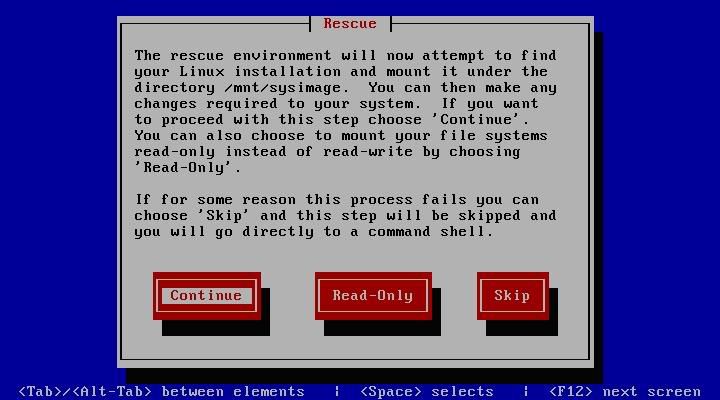
New  screen appear, which Inform you that  “ The rescue environment will now attempt to find your Linux installation and mount it under the directory  /mnt/sysimage” . Click “CONTINUE ”  


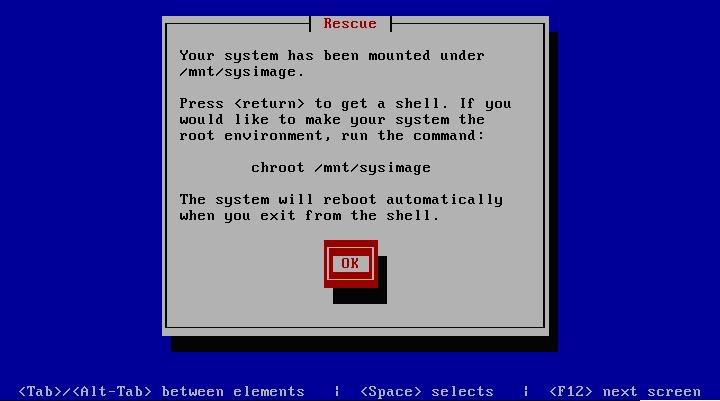
  • If everything is Ok , then you get the screen like this 


after clicking on “ok” you get Bash shell
Now type the “mount” command to see the file system mounted on mnt/sysimage, also use df –h to see the disk usage , write down the results because you really need that when you take next steps like volume used etc
         #mount
         #df –h


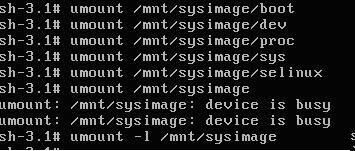
/dev/VolGroup00/LogVol00 is the LV group partition which you have to shrink so write down its size used space etc.Unmount everything under /mnt/sysimage and finally /mnt/sysimage itself. Use the "-l" option for umount if you get complaints about busy devices.
#umount /mnt/sysimage/boot
#umaunt /mnt/sysimage/dev
#umount /mnt/sysimage/proc etc


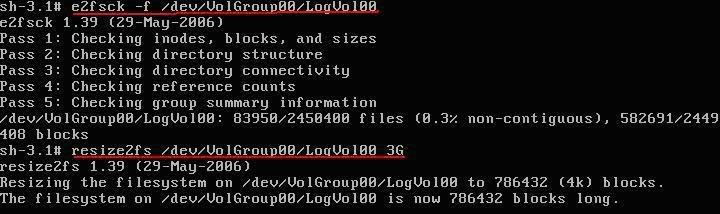
Now execute command “e2fsck –f” (e2fsck is used to check a Linux
second extended file system (ext2fs))and “resize2fs” with the size till
you want your new LV
#e2fsck –f /dev/VolGroup00/LogVol00
#resize2fs /dev/VolGroup00/LogVol00 3G

Remember one thing LVM allocates space in 32MB chunks by default, the new size must be a multiple of the LVM extent size. Leave 20% free space on the volume so that all the files work well. Don’t shrink full file system.
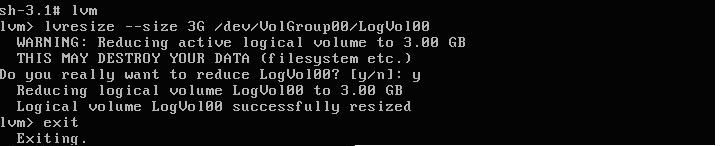
Now type “lvm” and then execute the command “lvresize”
    Lvm>lvresize –-size 3G /dev/VolGroup00/LogVol00
3G means you want to shrink the partition till it becom 3G, you can use your own value like 20G , 10G as you want.
Now write "exit" and then again "exit". Here you done half of your work. At the LV group you created a free space. If you want only till that step then you leave it here, but if you want to make free space outside the LV group to install other OS then continue.
After writing “exit” at Bash shell system restart, so you have to  boot it into rescue modea gain  as mention above but now skip the step when it says it want to attempt to mount the system in mnt/sysimage directory.
 

Now you get Bash shell again, activate the LVM by the command “lvm vgchange –a y”
              #lvm vgchange –a y
    • and execute command fsck –fc on /dev/VolGroup00/LogVol00 to update /etc/fstab directory.
             #fsck –fc /dev/VolGroup00/LogVol00
    • If you have knowledge of Linux then there is a swap file system which is created after VolGroup00/LogVol00 that is VolGroup00/LogVol01 , so to make new room you have to first remove it and then again make it after the new LV. Don’t worry you just temporarily removing it
    • Execute command “lvm lvs”  
              #lvm lvs         It shows you the exect size of your swap file say it is 1.59G
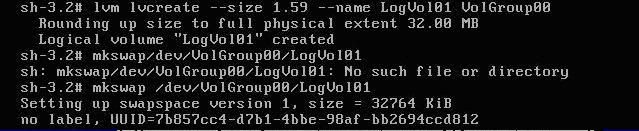
             Execute command “lvm lvremove” , “lvm lvcreate” on /dev/VolGroup00/LogVol01
             #lvm lvremove /dev/VolGroup00/LogVol01
             #lvm lvcreat ---size 1.59G –name LogVol01 VolGroup00
             #mkswap /dev/VolGroup00/LogVol01


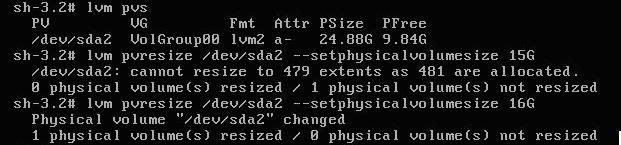
    Now Check how much you can shrink it by executing the command “lvm pvs”
             #lvm pvs
    Write down the result


    Now you can resize your /dev/sda2 physical volume to final size in between anything 10G to anything between 24.88G .
    Execute command “lvm pvresize”
              #lvm pvresize /dev/sda2 --setphysicalvolumesize 16G
    If command fails then that means your shrinking size is too small because there are still allocated extents other then swap, move it like this.
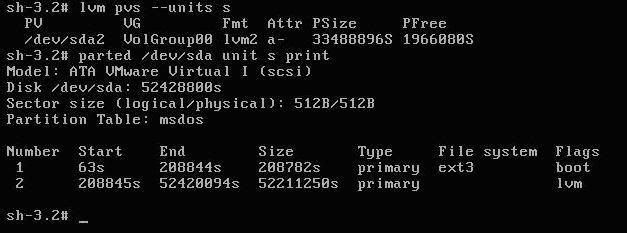
    Execute command “lvm pvs units s” ‘s’ for sectors it will display the partition size in sectors take note of PSIZE and execute parted to display the partion size in sectors (starting and ending ) and make note of that
    Now here you already free the space within LV group, and shrink the boundry of the lv group, so you have just take start sector of LVM and reduce the end sector to shrink it but make safty mark after 64MB (131072 sectors) .
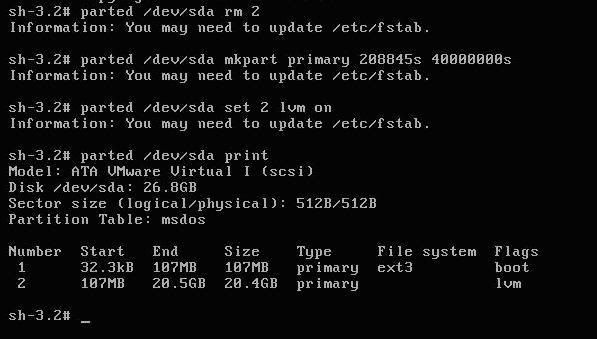
    • Execute command “parted”
              #parted /dev/sda rm 2 (2 is s/no of partition)  
    • And recreat the partition like this 
             #parted /dev/sda mkpart primary 208845s 40000000s
             #parted /dev/sda set 2 lvm on
             #parted /dev/sda print


    Then execute the commands “fdisk –l /dev/sda” and finally fsck –fc to update /etc/fstab
             #fdisk –l /dev/sda
             #fsck –fc /dev/VolGroup00/LogVol00
    Now you got space as you desire, It’s a example you can put your own values to make your desire partition space .

    I get reference  from these two posts so read these posts if  at any point you not understand

    How to shrink a default install LVM PV to create another partition 

    How to shrink your LVM root volume using rescue mode 

    2009-03-14

    Resizing Preloaded Operating System

    Laptops are more common machine these days, people spent huge amount to buy their desire dream machine. But most of the company sale their product with preloaded Operating System (Windows XP, Windows Vista, SUSE, Ubantu etc) and consume almost all the hard disk space on it, with no extra drive for the backup of their important data on his/her machine. That means if your OS corrupt everything on it will lost (your documents, files, images, video etc). They provide recovery drive, but that will only provide your operating system back not your whole data. One more problem I want to highlight, if you have Windows Vista or any Linux Version installed in your laptop then you are not able to install Windows over Linux and Windows XP on Windows Vista and not even duel boot them together then what to do to solve it.


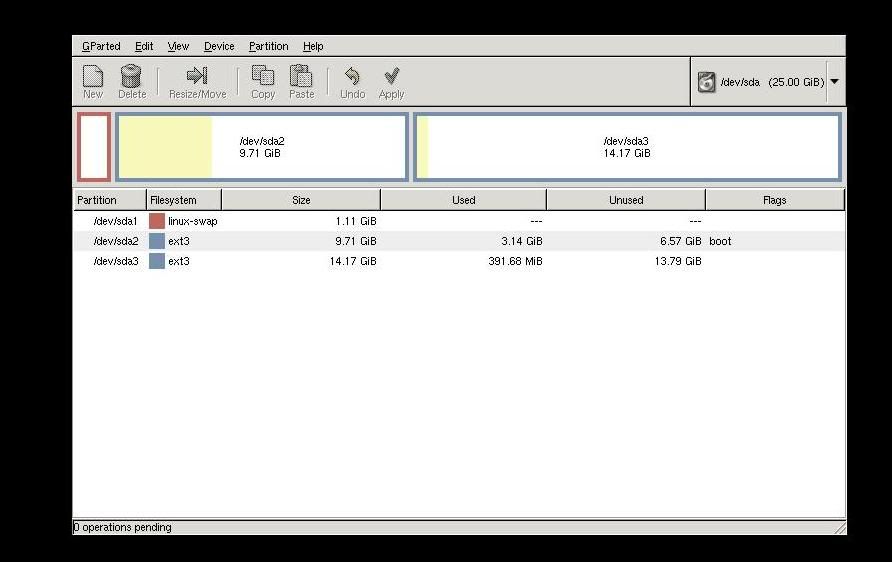
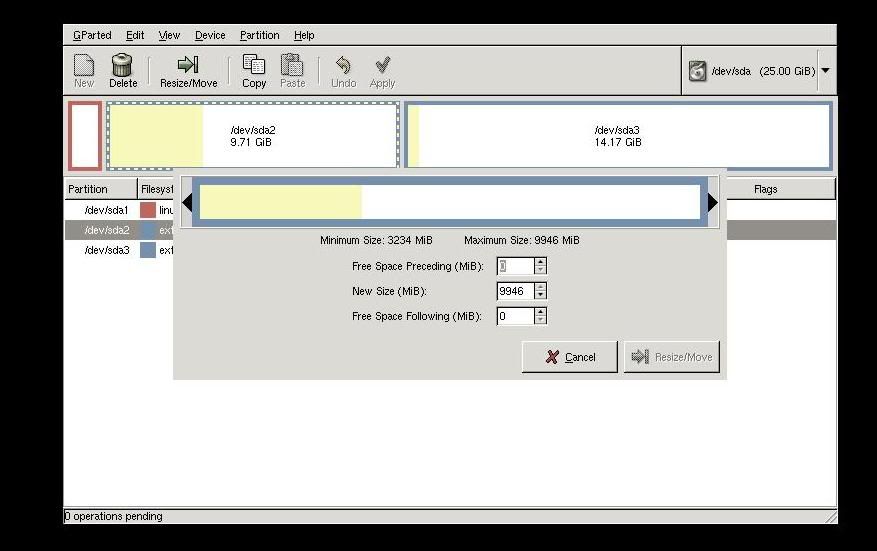
    Well every problem has a solution but to do it you have to search for it, but some time you have to pay for that, don't be surprise I am not saying to pay me, I am just saying those tools require money.. here I will explain how to RESIZE THE PRELOADED OPERATING SYSTEM DRIVE with Gnome Partition Editor(gparted) its a freeware tool, so don't worry for its payment.


    To use it follow the steps:-

    1. Download the GParted (Genome Partition Editor) Live cd.


    2. Then Burn it with Nero or any ISO burner software on a blank disk.
    3. Boot the GParted CD
    4.
    5.Select the basic settings like keyboard, language etc.


    6. After it it show you your hard disk partition


    7. Select your partition which you want to resize, right click on it and choose resize.
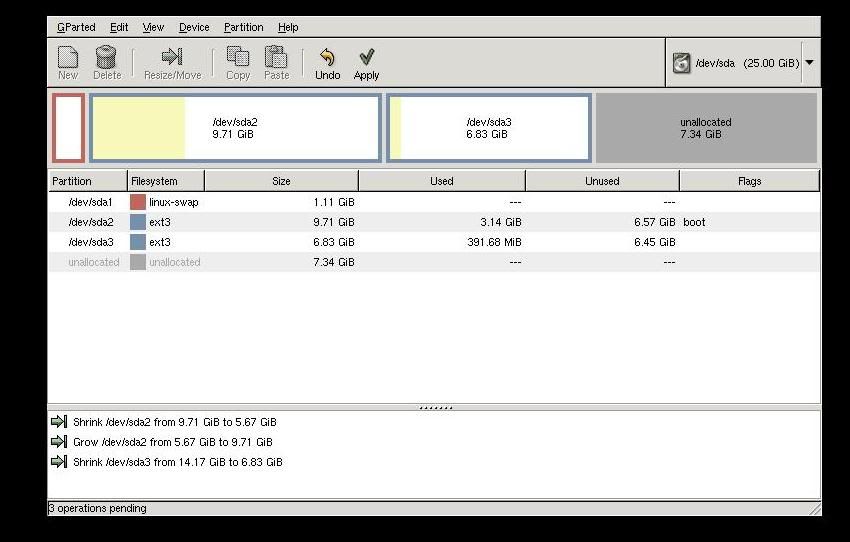
    8. Enter the space you require or can pulls it to decrise the size

    9. click on apply


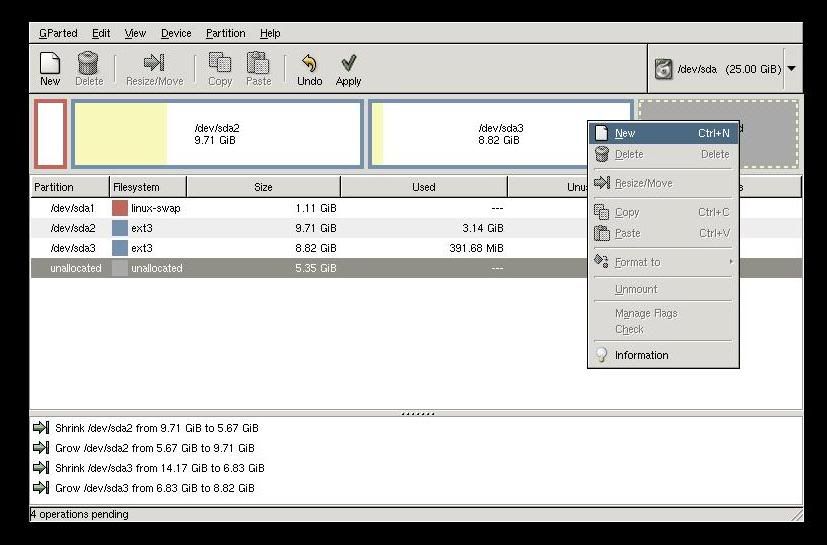
    10. Now some unlocated space is created, just select it to make new partion and right click on, click on NEW tab


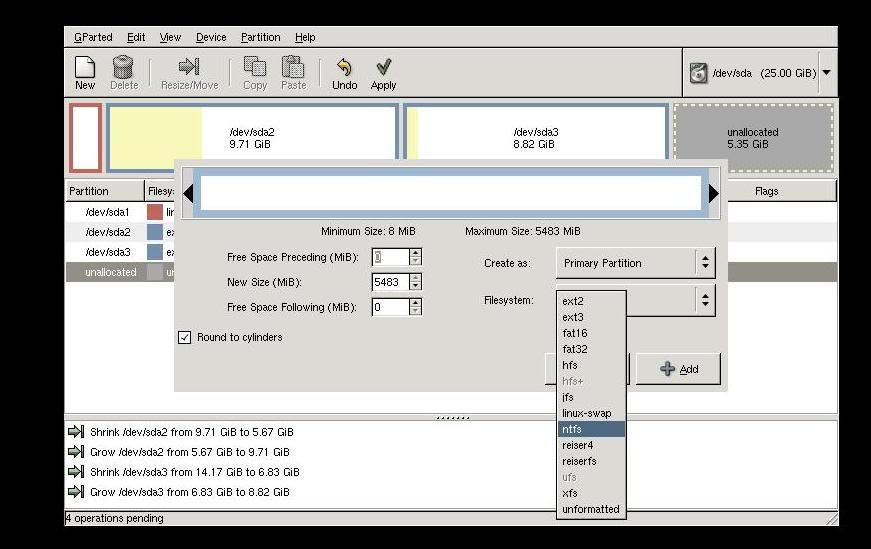
    11. Format it with any desire partition table NTFS, FAT, ext2, ext3.. etc


    12. Click apply it take some time to complete the process..


    13.Then shutdown it and use as usual your window new partion start showing on you mycomputer (in Windows) and new partition on desktop( in Linux).

    2008-10-10

    Sify Broadband Internet in Linux

    Sify is the one of popular broadband Internet company, it clam to be high speed Internet connectivity to the Clint, they are using different technique to provide Internet connectivity. To do so you have to download there connectivity Clint software which is free of cost but you have to do some settings in your windows PC for connectivity ( you have to add ip , subnet mask etc.). at windows level, it is very easy but you fails to do so at Linux, because at Linux nothing is install and run on one click.
    But if you think it is very hard then you also not correct, it is easy if you can do it step wise.
    Note:- I am telling you the procedure to install the sify Linux Clint on fedora Linux, you can done on other Linux too.
    To install the sify Internet Clint on the Linux see the steps
    1. First you have to add static ip address on your Ethernet card to make basic connectivity with the sify server to do that click at System , Administration menu , Network or simply right "system-config-network" at the terminal window it will display the screen like this
    2. After that double click on eth0 and you got this type of screen
    3. Make some changes on it like first click on statically "set ip addresses" and enter the ip address which is given by the sify at the time of connection installation.
    4. please check the option "Activate device when computer start" so that it will update it after rebooting (remember Linux show effects after rebooting).
    5. after all these settings, reboot the system. After rebooting click on "Mozilla Firefox Browser" and write the site which is given by your sify isp to download the Clint software. for example " http://203.144.134.10:8080/
    6. it will display a page of sify ftp on which you can download the Clint.
    7. Know click on the "GNU/Linux users click here to download the Sify Broadband client"
    8. it will display u other window on which you see two thing some ssl certification and a sifyclint.rpm(something like package) download it and copy/cut them and past it in any folder like in root, in home any folder.
    9. now open the terminal window in graphical login in Linux, go to that folder for example
    10. # cd \root
    11. now check that all the packages are on that folder or not by "dir" command or "ls -al" command. when you sure that all the packages are present on that folder write the command
    12. #rpm -ivh *.rpm
    13. remember one thing download the rpm packages because it easily install. it start installing after completing installation. write command
    14. #sifyconnect
    15. it will display a small dialogue box, asking username password,
    16. just type your password, username and enjoy the Internet

    2008-09-17

    Add/ Remove Software Problem In Fedora or Redhat Linux

    Friends, I wanted to share something with you. I have fedora 9 in my home system. I select its complete packages during Installation. But after installation I am unable to find the DHCP server package in it. I tries to install it from my Fedora Linux DVD. but I get some repomd.xml file is missing.
    Repomd.xml file is nothing it is a repository file which is store in "/etc/yum.repos.d" directory, you are thinking what is its work, actually this directory is the collocations of some repository files
    like fedora.rep, fedora-update.repo, livna.repo etc, these file is useful when you try to update or install software through Internet, every repo file have a specific function, if you open them then you see their is some Internet( ftp ) link. whenever you try the software through the command
    #yum install { for example #yum install dhcp}
    it connect through the Internet and start installing the package. Yum command help to install compile , remove and give its dependencies file needed for the packages and make it ready to use.
    But if you are trying to use through the Linux DVD then it fails and give the error that repomd.xml file is not found
    Nothing to worry friends now i find its solution and it is very easy , just follow some simple steps
    • first go to the /etc/yum.repo.d directory and open it by double click on the directory (remember i am telling you the graphical method of doing this, you can also use it through command line)
    • then make a repo file and name it cdrom.repo
    • copy the following content to that file (without the line space)
    [CDROM]
    name=cdrom
    baseurl=file:///media/dvd-rom/
    enabled=1
    gpgkey=file:///etc/pki/rpm-gpg/RPM-GPG-KEY-fedora
    gpgcheck=0
    • line after line and save it . after that open your terminal window and write the commands
    • [root@fedora ~]# mkdir /media/dvd-rom
      [root@fedora ~]#
      [root@fedora ~]# mount /dev/cdrom /media/dvd-rom/
    • remember insert Linux Installation DVD on the DVD rom before these commands
    • after that disable all other repository files (repo files ) only make enable cdrom.repo (Write #yum --disablerepo=> or just click on the repo and at the "enable=1" change it to "0" )
    • and save file then close it
    • Now click at "ADD/ REMOVE SOFTWARE" and click on any software package, try it to remove and install
    • Some time it not directly remove or install from add remove that time you just check which package you want to remove or install
    • then click on the DVD and click on packages and find the name of the package after that copy it and past it in any directory
    • open terminal window
    • and write command "#cd at which package is store for example ( cd /etc/home )
    • #rpm -ivh *.rpm
    • it automatically start installing . You can also do this to reach the DVD/package/ and write command " #rpm -ivh " and enjoy the packages. To install the software through Internet you have to disable the cdrom repo and enable all other repos like livina, fedora , fedora update etc (only change enable=0 to enable=1 )
    For More details click at http://fedoraproject.org/ or http://fedoraforum.org/

    2008-07-28

    Recovering Grub Boot Loader

    Just think you have 3 OS(operating systems ) in your computer (WINDOWS XP, WINDOWS SERVER and LINUX)
    and you need to format or Need to repair your Windows XP or any other OS ...
    I know you lost your all other two OS. ... Now it is very easy to recover ... just read these steps carefully... its quite easy any one can do this who know to install the windows or any OS


    # first if you wanted to repair or Reinstall the XP then install it but don’t try to format other OS drive in which WINDOWS SERVER and LINUX installed.

    # Then insert the Windows Server CD and restart the computer .. Make sure that the boot from CD\DVD option at the BIOS is on.

    # After booting from CD it search the other windows and show the drives in which your XP and server installed but it not show Linux partition.

    # After it don’t try to Install any thing just restart the Computer and see that u see all your xp and server chooses or not ... Mostly 98% it will show you again.

    # After all its Linux turn... The recovery of Grub Boot loader is little bit hard but that not means you have to be expert for that .... just do these steps...


    #Insert the Bootable Linux DVD or first CD of your Linux(any like fedora, red hat, SUSE , any)

    # boot it from the Media after that it ask you to install & Upgrade the Existing Linux.., just click at Upgrade the existing

    # It take little bit time and after that it show a screen in which it ask to make boot loader. Just think and select insert boot loader at MBR .. and click on ok


    # It reinsert the Boot loader and after that it automatically restart the computer .. and you get your all three OS..

    but remember one thing during this process.. u have to insert that Linux cd which Linux is already installed otherwise ... if it is latest one then it upgrade it or if it is older then may be it not work..