Virtual means not real, Virtualization means doing somthing Virtualy, with sharing of common resources.
Computer these days not meant only for calculation, most of our work depend on it. Most of us spent our valuable time in front of computer to make our work easy, we cant refuse if any body say our success is not possible without computer.
Well, if you want to make your work easier and somewhat more simpler, you will have to purchase a high speed and high processing Computer, which make your work very simple.
Along with good speed you always face a problem, of Reinstalling Operating System with all Applications, which always take a long time -- almost 2- 3 hours. So what you do if windows got corrupted. Well i will say, there is a way through which you can save almost 60% of your time during installation.
Now you thinking what Allahdin lamp i got, that i am saying you can save your 60% time. Its nothing just a thin Application.
VM ware is a common brand which always make their all software on Virtulisation, means sharing of physical resources without harming physical system, only you have to require some good configuration of system, I remember its VM ware Machine with it you can run a small network on an only a stand alone system, isn't it imaging.
Lets us Talk about its tool THIN APP, Just like other application of VM ware (VM ware Machine, server, Esx server, Virtual Desktop ), Thin App is also share a common platform of Virtulisation. It not only virtually run your application, even you can save there license and registration with in the application bundle. There is no need to insert the license again and again on every re-installation of OS, it just make a single Exe file which on click execute the program without installing it to the Hard disk
Let us take a look how to make a Autorun application with the Thin App:--
1. Install the VM Ware Thin App, on frash system, before to install other Application, when Installation complete click on its Icon to run.
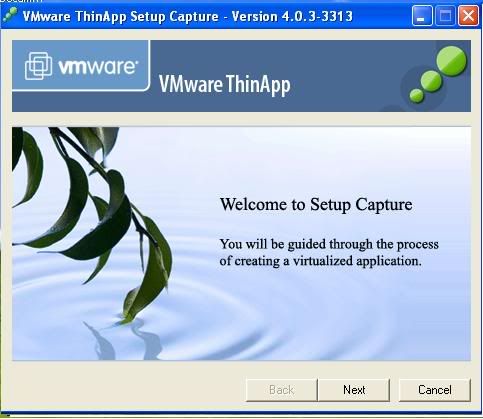
2. Click on NEXT to proceed.
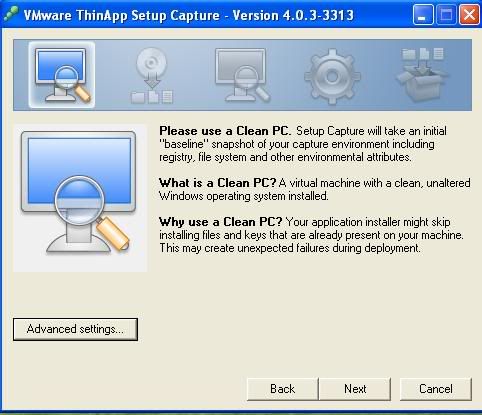
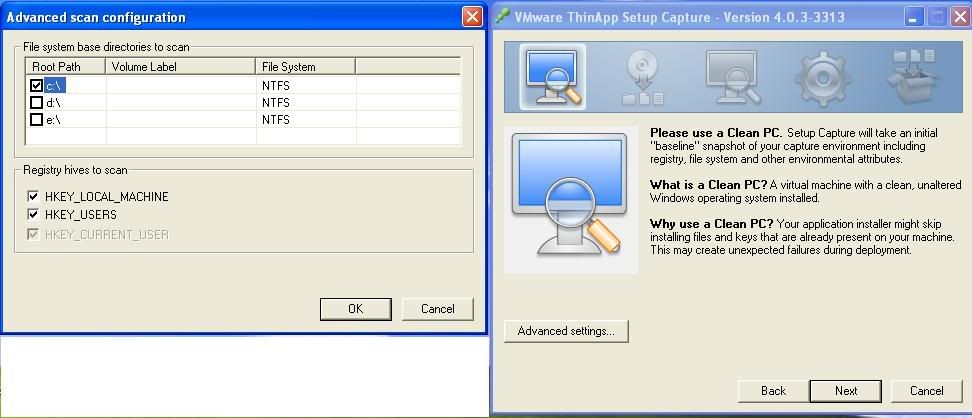
It actually scan your Installation directory (Program files)and registry to proceed further, If you think your system may take a diffrent path during installation then you may click on Advanced Settings, to select other drive also
3.When you select your default drive click at OK and then click at NEXT,
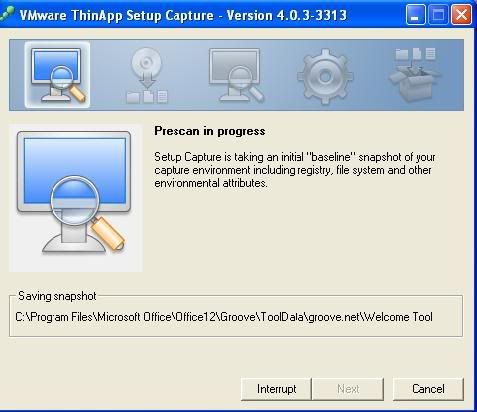
It will start its process of Prescan, which scan the directory which you allowed it to scan for changes, it will take some time. Once it give you option to click on NEXT then click at NEXT .
4. After a whole process, It will give you a option to Minimize the Thin app window and Install the software.
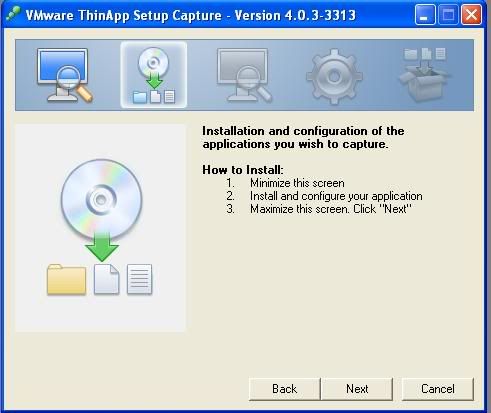
5. I am showing you a Example by just installing a Adobe Acrobat Reader 8, Just Install the software application
Finish the installation.
6. If your software require any product key, serial key then you should apply it too on the same time before Maximizing the window of Thin App, other wise Thin App capture only installed application without serial/ key.
After you done, Maximize the Thin App application, and click Next.
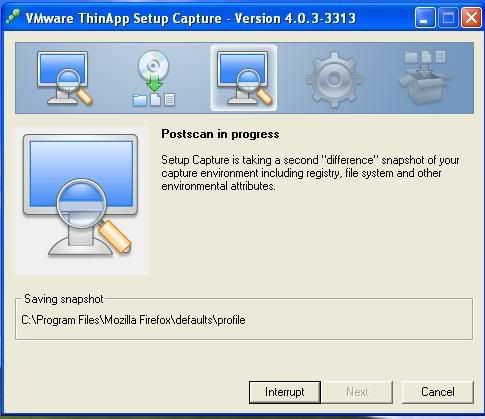
7. It take some time to capture the recently content installed at the system on "Post Scan Process" Just click at Next once it highlight the option of NEXT.
8. Once you click at Next, it will give you an option to select the installation files, it already selected by scanning, if you want a particular file out of all, then you can only choose that one and uncheck remaining.
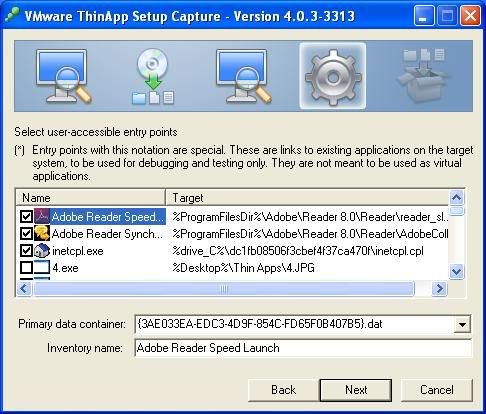
9. Click Next To proceed, You see a window of project just like that.
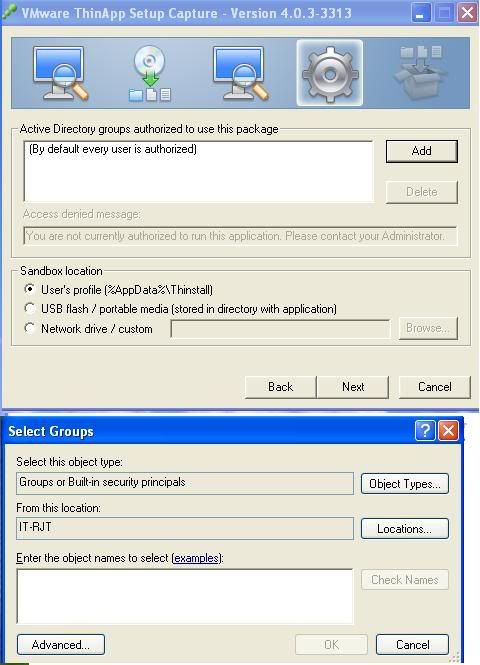
Its nothing just for granting the right to open and execute the application. By default everyone have a right to execute it, you may select different user by clicking at Add. Here you find one more option of Sandbox Location, actually during Executing the program, it make some temp file to execute that, it has a collection of files needed it to execute, it automatically created when you click the application Icon to execute it. select anything as per your desire and click at Next .
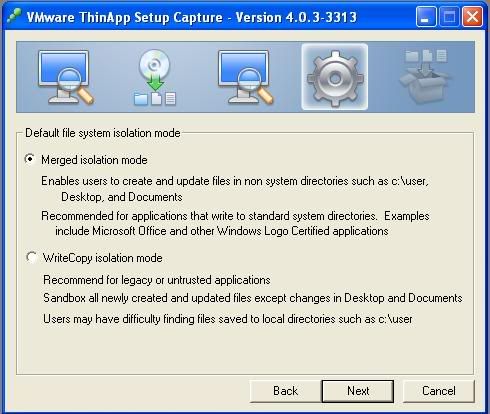
10. It ask you to select the Isolation mode, its nothing just how to integrate with Operating system. Select any option and click NEXT
11. You can save your project at your desired path once it create a directory you never need to follow whole path again you simple have a option to built your application through only that project folder.
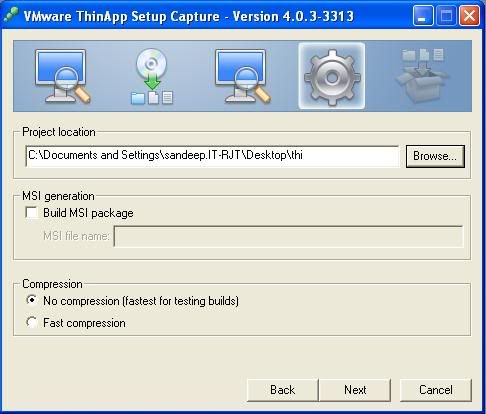
Along with the path, you will get some more options -- like installation of EXE ---you will get an option to built MSI, and Compression method.
One Excited thing I like about this software is that if you select Fast Compression, it never take too time to Execute the application .
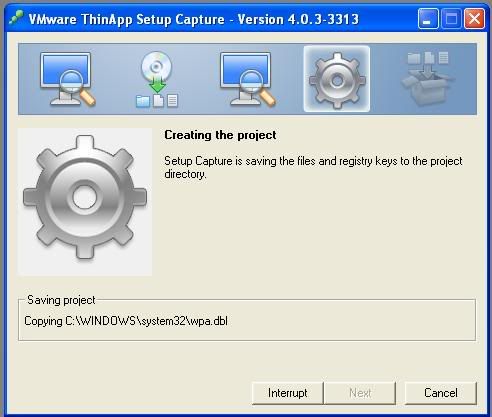
12. Click on Next to Create the Object, Finally you get a option to built your EXE, Click on BUILT NOW, and click on Finish.
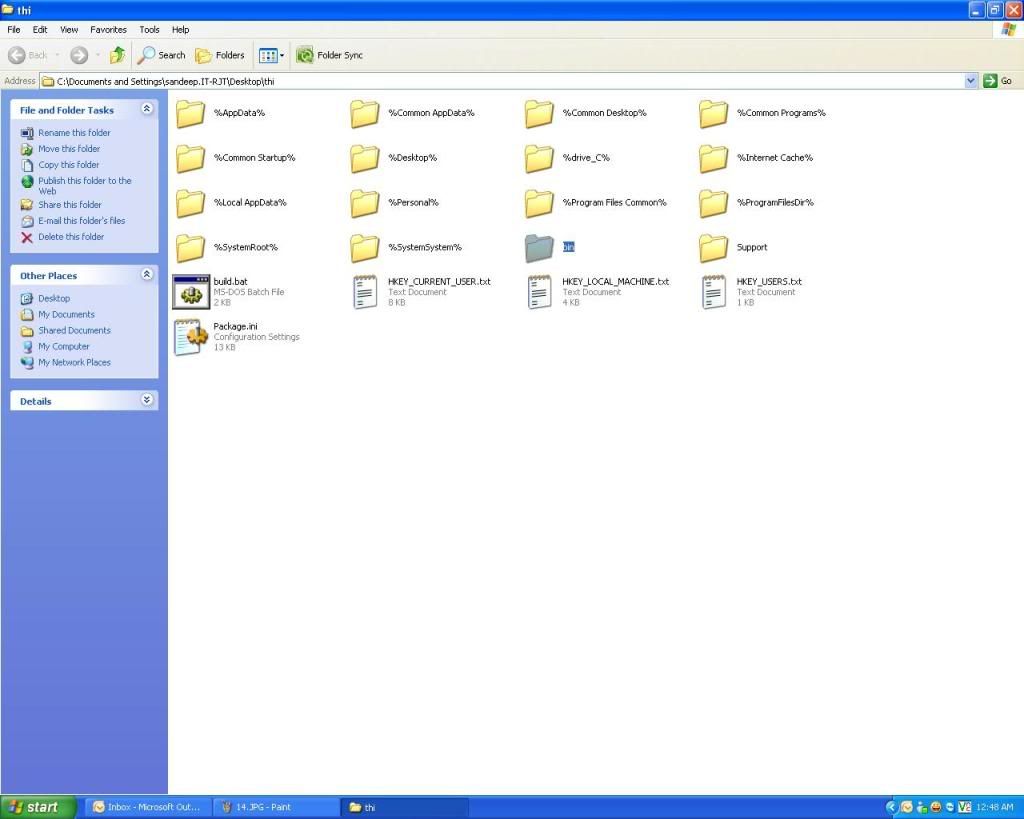
13. Search the Path where you saved your project, locate the folder BIN, and double click on it to open, you will find your whole EXE which you made.
You can Rename Bin folder as the name of your software and save it some where else.
14. double click on the icon of you application to open it.
As i already told you there is some limitation of Every software, it has also a limitation, if you trying to make EXE of your Drivers then you never do it, it has no effect on updates. If there is some requirement of your software, lets say if you install Office 2010 on windows XP it require XML 6.2, so if you make EXE of office 2010, then you must have a XML. 6.2 installed on the system which you trying to execute the office.
But over all its a very Effective tool to make and share application without installing and without corrupting the registry, of windows.
Learn Tips & tricks, Networking related topics, Troubleshooting software and Operating System related problems. Learn to handle Device configuration problems and much more
2009-07-21
INSTALL WINDOWS FROM USB PEN DRIVE/FLASH DRIVE
Installation through floppy is very common on Windows 3.1 and Windows 95 then CD\DVD were become very common on Windows 2000 and XP Installation , and still we are using the CD or DVD to Install our Operating system.Its sounds nice when you have a CDROM\DVDROM installed on your system, but whats that if you purchase a new branded PC or Laptop but it has no CD\DVD ROM. Don't eat your fingers its very simple, you can Install it with Flash drive I mean Pendrive.
Now your next question is How we can Install Windows through Pen drive, as we know it required a bootable media? well my answer is very easily then you ask How ? Just through this.
1. First download a software program WINSETUPFROMUSB0.1.1
2. It require:
4. Browse the source of Windows like you inserted a CD of windows XP and in Drive R:
5. Then Browse the USB Drive if it not apear autmatically then click on refresh buttone two three times.
6. after that click on HP format Tool and format it
7. Only by FAT32 file system.
8. Then click on "Close", and on WinsetupfromUSB click on "GO", It take little bit time. Now USB BOOTABLE MEDIA is ready.
INSTALL WINDOWS FROM USB PEN DRIVE
1. After it change the laptop BIOS boot sequence - Boot from USB ( Check the BIOS menual at the Motherboard book)
2. Now it start booting from USB Pendrive and give the screen
press ' Enter ' you get next screen
3. On Hiting ENTER if you not get this screen then press 'e' for edit command line
and select option 2 configfile /winsetup.list and press ' b' to boot it
4. Press 'Enter' on screen First Part of Windows XP Prof.After it windows start Booting through Pendrive, then it give you same option as you get through booting CD.
Note:- Just remember one thing when it show you the partition it display two drives, one is your HARD DISK and other one is your PEN DRIVE just check its size don't confuse on it, select the partition, or create the partition and follow the step, to know how to Install windows XP see the post Install windows XP
Remember It take lots of time to copy the files from pen drive to XP installation partition.
5. After copying the Installation files Windows restart the windows, again boot from Pendrive, and select option 2 'Second part of windows Xp prof. setup+ first time windows Start'.
6. Then GUI mode of Installation start and it finish the Installation, it take normal time, again it restart and you also have to select 2nd option to start windows first time.
7. When it start click on windows drive say it is D: drive (Remember you find two Removable disk on your system C: and E: , C: is your pen drive REM drive, select your first partition of hard disk).
8. Click on Tools - Folder Options -View - Show Hidden Files And Folder and also unchecked its two options 'Hide extentions for known file types and Hide protected operating system'
9. Click on apply and OK, after it you see some more files appear on the Windows drive click on Boot.ini file to open it

on step 2 screen 2 then restart computer and boot again and when you get the screen press 'e' to edit the option
Now your next question is How we can Install Windows through Pen drive, as we know it required a bootable media? well my answer is very easily then you ask How ? Just through this.
1. First download a software program WINSETUPFROMUSB0.1.1
2. It require:
- Windows XP CD
- USB DRIVE(Pen drive\ Flash drive)
- Windows PC having CD\DVD ROM
4. Browse the source of Windows like you inserted a CD of windows XP and in Drive R:
5. Then Browse the USB Drive if it not apear autmatically then click on refresh buttone two three times.
6. after that click on HP format Tool and format it
7. Only by FAT32 file system.
8. Then click on "Close", and on WinsetupfromUSB click on "GO", It take little bit time. Now USB BOOTABLE MEDIA is ready.
INSTALL WINDOWS FROM USB PEN DRIVE
1. After it change the laptop BIOS boot sequence - Boot from USB ( Check the BIOS menual at the Motherboard book)
2. Now it start booting from USB Pendrive and give the screen
press ' Enter ' you get next screen
3. On Hiting ENTER if you not get this screen then press 'e' for edit command line
and select option 2 configfile /winsetup.list and press ' b' to boot it
4. Press 'Enter' on screen First Part of Windows XP Prof.After it windows start Booting through Pendrive, then it give you same option as you get through booting CD.
Note:- Just remember one thing when it show you the partition it display two drives, one is your HARD DISK and other one is your PEN DRIVE just check its size don't confuse on it, select the partition, or create the partition and follow the step, to know how to Install windows XP see the post Install windows XP
Remember It take lots of time to copy the files from pen drive to XP installation partition.
5. After copying the Installation files Windows restart the windows, again boot from Pendrive, and select option 2 'Second part of windows Xp prof. setup+ first time windows Start'.
6. Then GUI mode of Installation start and it finish the Installation, it take normal time, again it restart and you also have to select 2nd option to start windows first time.
7. When it start click on windows drive say it is D: drive (Remember you find two Removable disk on your system C: and E: , C: is your pen drive REM drive, select your first partition of hard disk).
8. Click on Tools - Folder Options -View - Show Hidden Files And Folder and also unchecked its two options 'Hide extentions for known file types and Hide protected operating system'
9. Click on apply and OK, after it you see some more files appear on the Windows drive click on Boot.ini file to open it
10. You find
Timeout=1 change it 30
rdisk(1) on line 3 and 5. change 1 to 0 see the above file screen shoot.
and click on save .
11. Then again go to Tools - folder option - view- and hide the hidden file and check its two options.now remove pen drive, restart the windows and enjoy the Operating system.
Note:- some time you get error

on step 2 screen 2 then restart computer and boot again and when you get the screen press 'e' to edit the option
select option 2 with arrow key 'chainloader (hd0,0/ntldr' and press ' b' to boot.
2009-07-06
Download Your Feverate Linux Destro (Operating system) free.
After a long search I found these Linux destro, some of them are very common, and everyone knows them
RED HAT, FEDORA, UBUNTU etc.
While I tried to give you a short description and a download link so that you can also use it on your PC.

Fedora is a Linux-based operating system that showcases the latest in free and open source software. It is Based on RED HAT Linux and release in every 6 to 9 month period, actually it is a RED HAT BETA release. You can run all command which included in RED HAT.
DOWNLOAD FEDORA
Ubuntu is a community developed, Linux-based operating system that is perfect for laptops, desktops and servers. It contains all the applications you need - a web browser, presentation, document and spreadsheet software, instant messaging and much more.
DOWNLOAD UBUNTU
OPEN SUSE
It is a free and Linux-based operating system for your PC, Laptop or Server. You can surf the web, manage your e-mails and photos, do office work, play videos or music.
DOWNLOAD OPEN SUSE
Mandriva
Mandriva is a developed linux, it include some free and trial software, one of them is WINE which can run windows applications on linux, or any exe file in linux.
DOWNLOAD MANDRIVA
KUBUNTU
Kubuntu is a free, user-friendly operating system based on the K Desktop Environment and on the award winning Ubuntu operating system. With a biannual release cycle and at least 18 months of free security updates for each release, it is the secure, stable computing environment
DOWNLOAD KUBUNTU
Linpus is an innovator and a pioneer in bringing user friendly open source solutions to the mass consumer market.Set up more than 10 years ago, Linpus has worked on open source solutions across numerous platforms and products, building up a reputation for engineering excellence, and evolving into a world class software vendor. We stand out by excelling in key areas important to both consumers and manufacturers alike: creative, highly intuitive user interfaces that are customized on a customer-by-customer basis to add real value; hardware integration expertise ensuring a flawless out of-the-box experience; and, unprecedented levels of on-site support and service.
It is one of my feverate Linux, because it include MPlayer to play media files of any formet and messenger, webcam, and many more great softwares. Many of Laptop companies include it in their machine ( Acer, Ban Q, Asus, Lenovo etc)
DOWNLOAD LINPUS
You can find many more free Linux Destro, but these are very common and you can enjoy it when you use them
RED HAT, FEDORA, UBUNTU etc.
While I tried to give you a short description and a download link so that you can also use it on your PC.
Fedora is a Linux-based operating system that showcases the latest in free and open source software. It is Based on RED HAT Linux and release in every 6 to 9 month period, actually it is a RED HAT BETA release. You can run all command which included in RED HAT.
DOWNLOAD FEDORA
Ubuntu is a community developed, Linux-based operating system that is perfect for laptops, desktops and servers. It contains all the applications you need - a web browser, presentation, document and spreadsheet software, instant messaging and much more.
DOWNLOAD UBUNTU
OPEN SUSE
It is a free and Linux-based operating system for your PC, Laptop or Server. You can surf the web, manage your e-mails and photos, do office work, play videos or music.
DOWNLOAD OPEN SUSE
Mandriva
KUBUNTU
Linpus is an innovator and a pioneer in bringing user friendly open source solutions to the mass consumer market.Set up more than 10 years ago, Linpus has worked on open source solutions across numerous platforms and products, building up a reputation for engineering excellence, and evolving into a world class software vendor. We stand out by excelling in key areas important to both consumers and manufacturers alike: creative, highly intuitive user interfaces that are customized on a customer-by-customer basis to add real value; hardware integration expertise ensuring a flawless out of-the-box experience; and, unprecedented levels of on-site support and service.
It is one of my feverate Linux, because it include MPlayer to play media files of any formet and messenger, webcam, and many more great softwares. Many of Laptop companies include it in their machine ( Acer, Ban Q, Asus, Lenovo etc)
DOWNLOAD LINPUS
You can find many more free Linux Destro, but these are very common and you can enjoy it when you use them
2009-04-25
Install Windows Over Linux
Friends, as i already mention on my previous post that today laptops or Desktop of branded company have preloaded Operating system, so you must have to make some space or new partition on them to save your data.
If Linux is installed in your PC as a preloaded OS, and you don't want to delete that from your computer, but want windows to install over LINUX , then my post really help you.
Some one said its very difficult. and you have to install windows first then install linux like fedora, Red Hat over the windows. But nothing like that. just read my Posting you will succide 100%.
Lets take a example that Preloaded OS is Fedora Linux ,and you have 25GB Hard disk , It has two partitions like this
1 107M /boot
2 24.93G LogVol00
logical volume is the default volume on fedora/redhat linux , beceause it is very easy to manage ( You can easily add and remove partition/ or space within it ).
To install windows you must make some space out of logical volume, Please read my previous post to make some space or new partition in Preloaded Environment
Shrink LV (Logical Volume ) default Installation group of Fedora/ Red Hat linux and Resize Pre loaded Operating system
After reading it you are able make some space to install windows over it .
If you are trying to install windows server 2003, Vista or any other latest OS of windows, then just boot the CD/DVD and find the free space, and make partition on it and follow the online instruction, or its documentations
Rember only choose free space which you created, to install new OS, otherwise you lost your Linux. after booting from windows CD, it will display two partition one is around 100mb, other is windows fault tolrence don't touch them. Just after these two you see free space, just click on that and make partition
If you want to install 98, Windows 2000, or XP then may be it not show you any option directly to create partition or may be windows XP not boot from its CD then what to do.. don't worry. Just follow these steps, you need windows Xp CD , and a 98 CD..
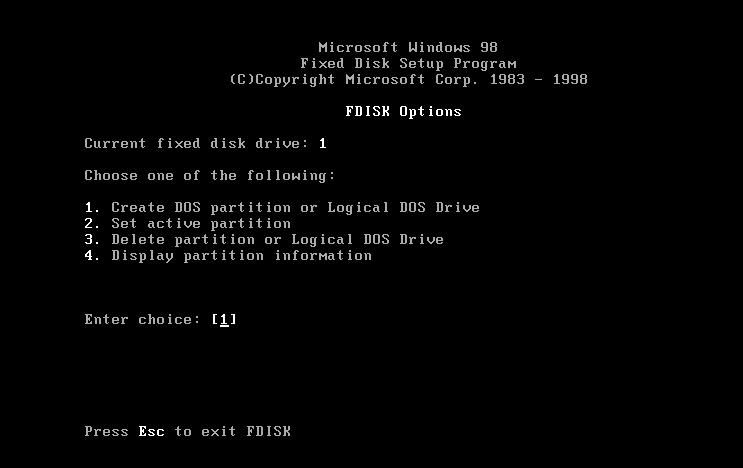
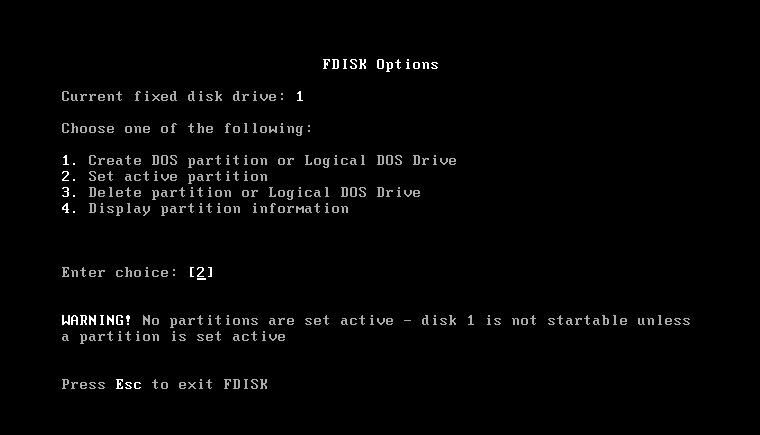
click 'y' to go inside the fdisk when it ask to do so

just press 4 to display the forth option"Display partition Information"
It will ask "Do you want to give it full space to creat new partition........." press 'y' if you want to give it full space or 'n' to customize the partition size.
and press '3' to make 3rd partition active which u created recently.
now click on "Esc" again "Esc" to come out from Fdisk wizard and write command format c: with switches /q and /s
/q for quick and /s for transfer system file.
A:/>formate c: /q/s
E:\win98>smartdrv
E:\i386>winnt
Note:- Don't format the partition, if it ask to format then just choose the option "Leave partition without format"
After windows Install then Insert your linux CD/DVD and click on Upgrade installation and just rebuilt the boot loader after that both linux and windows will work.
Note:- to know how to get linux back read " Recovering Grub Boot Loader "
If you do step wise then you definetly Install windows over linux, without loosing your preloaded linux .
If Linux is installed in your PC as a preloaded OS, and you don't want to delete that from your computer, but want windows to install over LINUX , then my post really help you.
Some one said its very difficult. and you have to install windows first then install linux like fedora, Red Hat over the windows. But nothing like that. just read my Posting you will succide 100%.
Lets take a example that Preloaded OS is Fedora Linux ,and you have 25GB Hard disk , It has two partitions like this
1 107M /boot
2 24.93G LogVol00
logical volume is the default volume on fedora/redhat linux , beceause it is very easy to manage ( You can easily add and remove partition/ or space within it ).
To install windows you must make some space out of logical volume, Please read my previous post to make some space or new partition in Preloaded Environment
Shrink LV (Logical Volume ) default Installation group of Fedora/ Red Hat linux and Resize Pre loaded Operating system
After reading it you are able make some space to install windows over it .
If you are trying to install windows server 2003, Vista or any other latest OS of windows, then just boot the CD/DVD and find the free space, and make partition on it and follow the online instruction, or its documentations
Rember only choose free space which you created, to install new OS, otherwise you lost your Linux. after booting from windows CD, it will display two partition one is around 100mb, other is windows fault tolrence don't touch them. Just after these two you see free space, just click on that and make partition
If you want to install 98, Windows 2000, or XP then may be it not show you any option directly to create partition or may be windows XP not boot from its CD then what to do.. don't worry. Just follow these steps, you need windows Xp CD , and a 98 CD..
- Boot 98 CD with CD Rom Support. when you reach at A: promt then type "fdisk"
click 'y' to go inside the fdisk when it ask to do so
- After a screen appear like this
just press 4 to display the forth option"Display partition Information"
- It will display information of the partition of your hard disk, also display the status of partition ( active, dos / non dos and total space etc) .
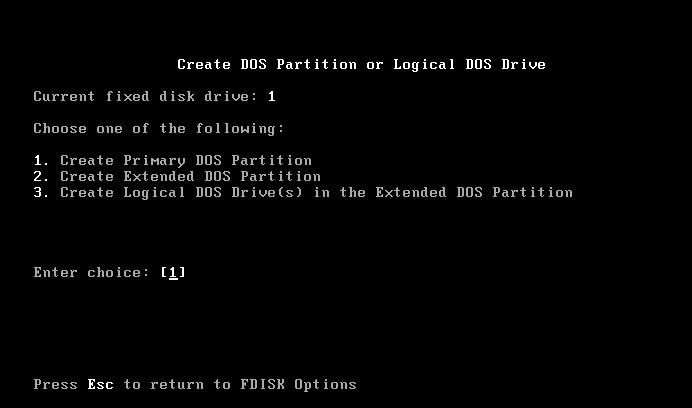
- see the partition which are active... it show two partition which are active then click "escape" button of keyboard and press 1 to creat new partition
It will ask "Do you want to give it full space to creat new partition........." press 'y' if you want to give it full space or 'n' to customize the partition size.
- Now it creat a new partition click ok "may be it says it will need to restart the window to continue then press "ESC" and go at A:\> and write 'Restart' then restart the PC and boot again with 98 CD with above step
- At A:/> type fdisk and now press 2 to make your partition active .
and press '3' to make 3rd partition active which u created recently.
now click on "Esc" again "Esc" to come out from Fdisk wizard and write command format c: with switches /q and /s
/q for quick and /s for transfer system file.
A:/>formate c: /q/s
- It may say that quick format will not done, make it normal format, just press 'y' for yes, and find your CD Rom drive for windows 98 other then C: like here its E:
- Now enter command "cd win98" to change directory and "smartdrv" to install smartdrive
E:\win98>smartdrv
- Half of your work is done, now remove CD and insert Windows XP CD, find their Drive letter and write command 'cd i386' and 'winnt'
E:\i386>winnt
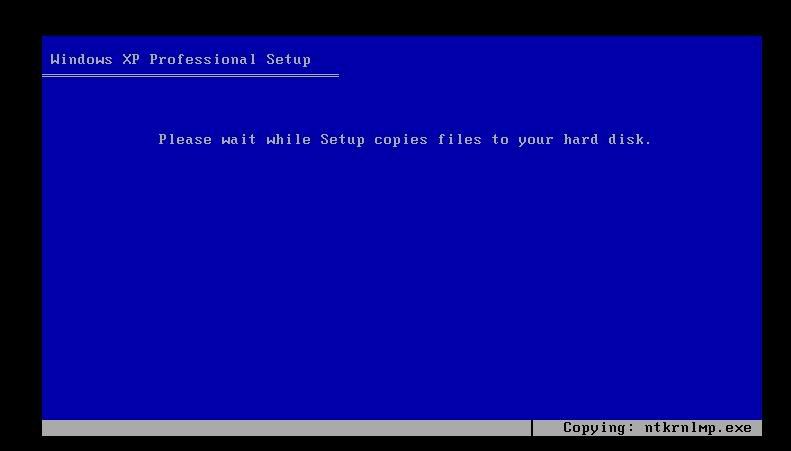
- It will take some time to copy the files and after that it will restart and boot the system give it some time, now nothing to do just follow the steps on the screen
Note:- Don't format the partition, if it ask to format then just choose the option "Leave partition without format"
After windows Install then Insert your linux CD/DVD and click on Upgrade installation and just rebuilt the boot loader after that both linux and windows will work.
Note:- to know how to get linux back read " Recovering Grub Boot Loader "
If you do step wise then you definetly Install windows over linux, without loosing your preloaded linux .
2009-04-23
Shrink LV (Logical Volume ) default Installation group of Fedora/ Red Hat linux
Hi, friends, as I mention on my earlier post that today Linux is also going to popular OS. So the Computer vender generally ships preloaded OS like Vista, LINUX etc to the laptop or Desktop, and only give a single partition for work on which already system files are Installed with it they generally hide one partition called recovery Installation . If you get any problem get attacked by virus then with a single button you get back to your previous stat at which you purchased your PC. But what about your precious data , well it is lost.
If you get Windows as a Preloaded OS then you are very Lucky because you get many stuff or software related to create /resize partition (on internet some are free) , which can make a room ( resize your existing partition and make new partition) to save your data. And by chance you get Linux like Fedora red hat SUSE etc then you definitely suffer more for that I already mention what to do, for detail see my previous Resizing the Preloaded Operating system
Now come to the point If you try to resize the LV partition (Logical Volume) on generally fedora/ red hat then you has to do some extra command line steps. Don’t worry these are easy as GUI, but you have to do some labor.
follow these steps for easy configuration:--
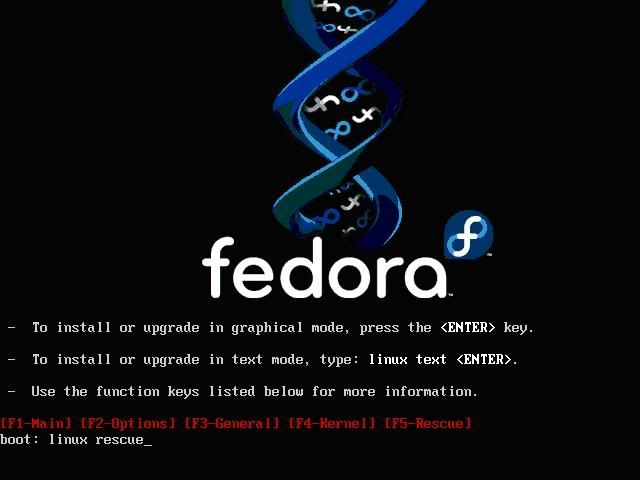
- Boot Fedora Installation CD/DVD at rescue mode
It take some time to go to rescue mode after boot , select keyboard layout and language, After that it ask you to choose the “NETWORK SETUP” so just skip it because there is no need to setup Network
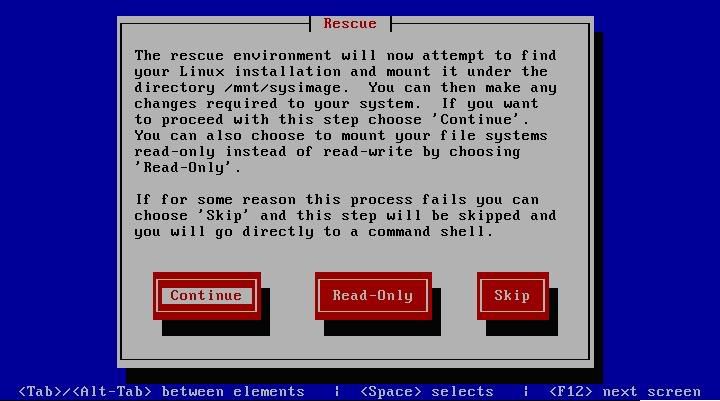
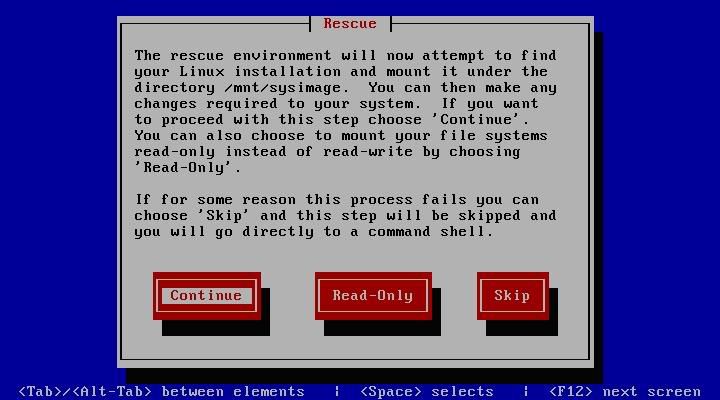
New screen appear, which Inform you that “ The rescue environment will now attempt to find your Linux installation and mount it under the directory /mnt/sysimage” . Click “CONTINUE ”
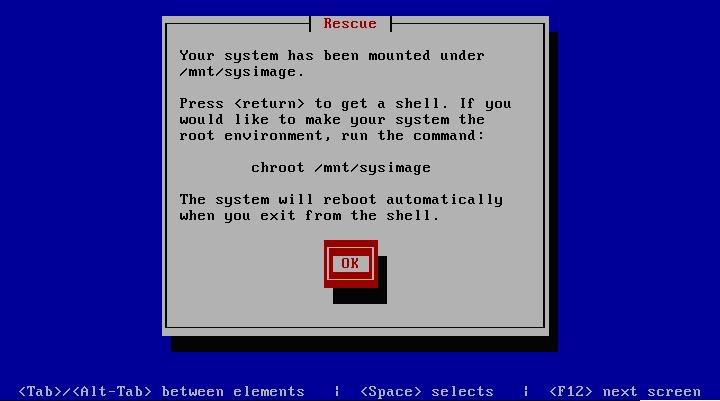
- If everything is Ok , then you get the screen like this
after clicking on “ok” you get Bash shell
Now type the “mount” command to see the file system mounted on mnt/sysimage, also use df –h to see the disk usage , write down the results because you really need that when you take next steps like volume used etc
#mount
#df –h
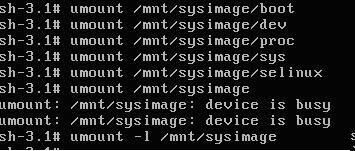
/dev/VolGroup00/LogVol00 is the LV group partition which you have to shrink so write down its size used space etc.Unmount everything under /mnt/sysimage and finally /mnt/sysimage itself. Use the "-l" option for umount if you get complaints about busy devices.
#umount /mnt/sysimage/boot
#umaunt /mnt/sysimage/dev
#umount /mnt/sysimage/proc etc
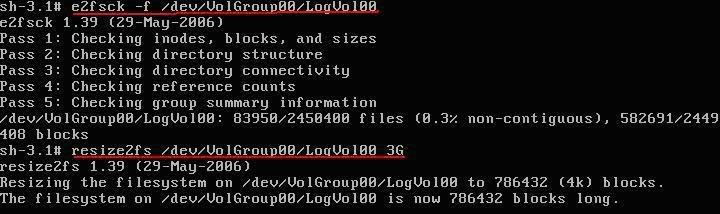
Now execute command “e2fsck –f” (e2fsck is used to check a Linux
second extended file system (ext2fs))and “resize2fs” with the size till
you want your new LV
#e2fsck –f /dev/VolGroup00/LogVol00
Remember one thing LVM allocates space in 32MB chunks by default, the new size must be a multiple of the LVM extent size. Leave 20% free space on the volume so that all the files work well. Don’t shrink full file system.
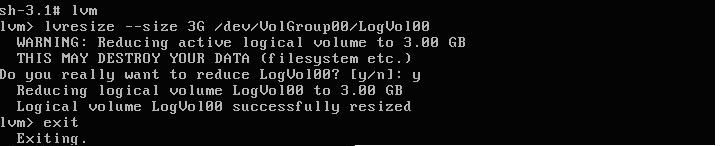
Now type “lvm” and then execute the command “lvresize”
Lvm>lvresize –-size 3G /dev/VolGroup00/LogVol00
Now write "exit" and then again "exit". Here you done half of your work. At the LV group you created a free space. If you want only till that step then you leave it here, but if you want to make free space outside the LV group to install other OS then continue.
After writing “exit” at Bash shell system restart, so you have to boot it into rescue modea gain as mention above but now skip the step when it says it want to attempt to mount the system in mnt/sysimage directory.
Now you get Bash shell again, activate the LVM by the command “lvm vgchange –a y”
#lvm vgchange –a y
- and execute command fsck –fc on /dev/VolGroup00/LogVol00 to update /etc/fstab directory.
#fsck –fc /dev/VolGroup00/LogVol00
- If you have knowledge of Linux then there is a swap file system which is created after VolGroup00/LogVol00 that is VolGroup00/LogVol01 , so to make new room you have to first remove it and then again make it after the new LV. Don’t worry you just temporarily removing it
- Execute command “lvm lvs”
#lvm lvs It shows you the exect size of your swap file say it is 1.59G
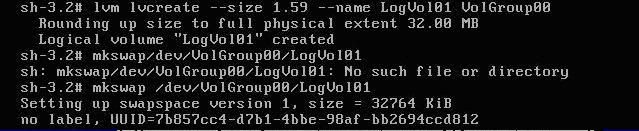
Execute command “lvm lvremove” , “lvm lvcreate” on /dev/VolGroup00/LogVol01
#lvm lvremove /dev/VolGroup00/LogVol01
#lvm lvcreat ---size 1.59G –name LogVol01 VolGroup00
Now Check how much you can shrink it by executing the command “lvm pvs”
#lvm pvs
Write down the result
Now you can resize your /dev/sda2 physical volume to final size in between anything 10G to anything between 24.88G .
Execute command “lvm pvresize”
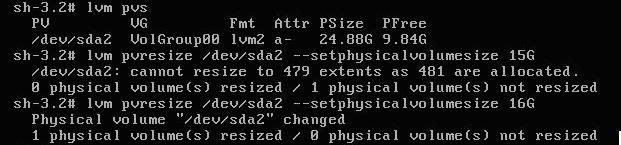
#lvm pvresize /dev/sda2 --setphysicalvolumesize 16G
If command fails then that means your shrinking size is too small because there are still allocated extents other then swap, move it like this.
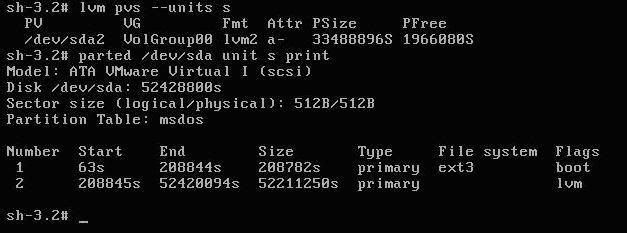
Execute command “lvm pvs units s” ‘s’ for sectors it will display the partition size in sectors take note of PSIZE and execute parted to display the partion size in sectors (starting and ending ) and make note of that
Now here you already free the space within LV group, and shrink the boundry of the lv group, so you have just take start sector of LVM and reduce the end sector to shrink it but make safty mark after 64MB (131072 sectors) .
Then execute the commands “fdisk –l /dev/sda” and finally fsck –fc to update /etc/fstab
I get reference from these two posts so read these posts if at any point you not understand - Execute command “parted”
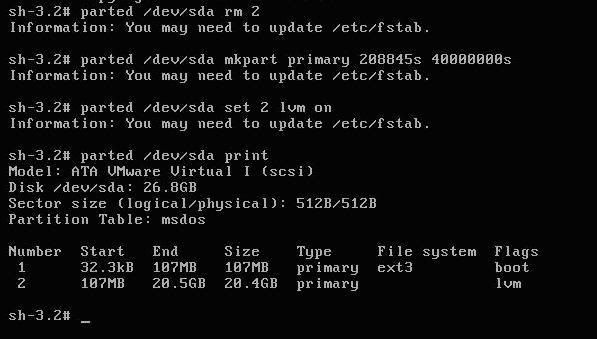
#parted /dev/sda rm 2 (2 is s/no of partition)
- And recreat the partition like this
#parted /dev/sda mkpart primary 208845s 40000000s
#parted /dev/sda set 2 lvm on
Then execute the commands “fdisk –l /dev/sda” and finally fsck –fc to update /etc/fstab
#fdisk –l /dev/sda
#fsck –fc /dev/VolGroup00/LogVol00
Now you got space as you desire, It’s a example you can put your own values to make your desire partition space .
How to shrink a default install LVM PV to create another partition
How to shrink your LVM root volume using rescue mode
2009-03-28
Conficker.C Virus Truth or Rumor Spreading from 1 April
A new virus Conficker.C also named as Downadup, will Start spreading from 1April. Well Who knows it’s a rumor or a True news but if it is Exactly a News then it will be very pain full experience of this year, for corporate sector. Expert says it is much more dangerous, then its other two forms ( Conficker.A and Conficker.B ), Its main target is Security Center of your System, its alone capable in blocking security update sites.
When it execute it will make its multiple copies to system folder in form of small dll files , which will randomly and independently execute itself, some time it drop a copy in Program Files, Documents and settings folders also. It will start automatically in startup, register itself as a service and start blocking to access the security sites, it block some services like Automatic Update (wuauserv), Background Intelligent Service(BITS), Windows Security Center(wscsvc), and Antivirus/Security services, so that it will do its work properly.
When it blocks all Security related websites, services then it start connecting with other threat, and malware websites and download updates from the sites, means it will invite more, virus, Worms, spyware to come on to your system and then also send information of your system, sperms mails from your system to other or on your system too. If in case you try to restore your system to back date then you unable to do so because it will already deleted all system restore points in your system after execute.
How you find that your system is infected with this virus?
Well no one know how it infect the system but check these to find is really your system is infected or not .
- Check the services are disable itself :
wscsvc -Security Center
WinDefend Windows Defender ( In windows Xp and available already inVista)
wuauserv - Automatic Updates
BITS - Background Intelligent Transfer Service
ERSvc - Error Reporting Service
WerSvc - Windows Error Reporting Service (available inVista)
2. Check system restore point is created daily on your system or not
Click START--- RUN--- and type without quota “msconfig” and then click on LAUNCH SYTEM RESTORE --- and then RESTORE MY COMPUTER TO EARLIER POINT and click NEXT and see at right side is it showing you restore point or not .
You also reach at Restore settings through START--- ALL PROGRAMS --- ACCESSORIES--- SYSTEM TOOLS --- SYSTEM RESTORE
Or try START—RUN and type “rstrui.exe” without quota.
- Check the registry value available if not then your system is infected.
HKLM\Software\Microsoft\Windows\CurrentVersion\explorer\ShellServiceObjects\{FD6905CE-952F-41F1-9A6F-135D9C6622CC}
- Check Your antivirus software is updating automatically or not and check all the services of your antivirus is on and working or not.
If you found any of the issue that means your system is infected with the Conficker.C worm.
How to stop it to spread and make less impact of Conficker.C virus ?
To stops the impacts of the virus to spread just follow some steps:
- First of all if it is connected with Network, Internet, Domain then disconnect it.
- Try to install Some updated and newer version of antivirus software and then full scan your system .
- Scan USB drive before backup data and transferring date because it start automatically after just insert in system
- Try to start the disable services (RUN--- START--- type “services.exe” ) mention already.
- If you suicide then update your system with MS08-067 patch and critical updates by manually download them.
- If you not suicide then first format whole computer and scan it with Antivirus software(try to scan with bootable antivirus software cd then apply MS08-067 patch.
- Install latest antivirus software and Change the weak system password with stronger and encrypted password which is harder to crack.
- It will try to contact one or more of the following domains in order to download further (and, presumably, malicious) updates –
btddc.com, d34ft.com, 23drf.com, cscs7.com, mgaazz.com, hhgg3.com, trafficconverter.biz so make them block completely
Check the system periodically . to ensure it will not infected again.
For further reading see the posting ::::::
post 1, Post:2 Post 3 Post 4
Labels:
operating system,
Restriction,
Security,
Update,
Virus
2009-03-14
Resizing Preloaded Operating System
Laptops are more common machine these days, people spent huge amount to buy their desire dream machine. But most of the company sale their product with preloaded Operating System (Windows XP, Windows Vista, SUSE, Ubantu etc) and consume almost all the hard disk space on it, with no extra drive for the backup of their important data on his/her machine. That means if your OS corrupt everything on it will lost (your documents, files, images, video etc). They provide recovery drive, but that will only provide your operating system back not your whole data. One more problem I want to highlight, if you have Windows Vista or any Linux Version installed in your laptop then you are not able to install Windows over Linux and Windows XP on Windows Vista and not even duel boot them together then what to do to solve it.
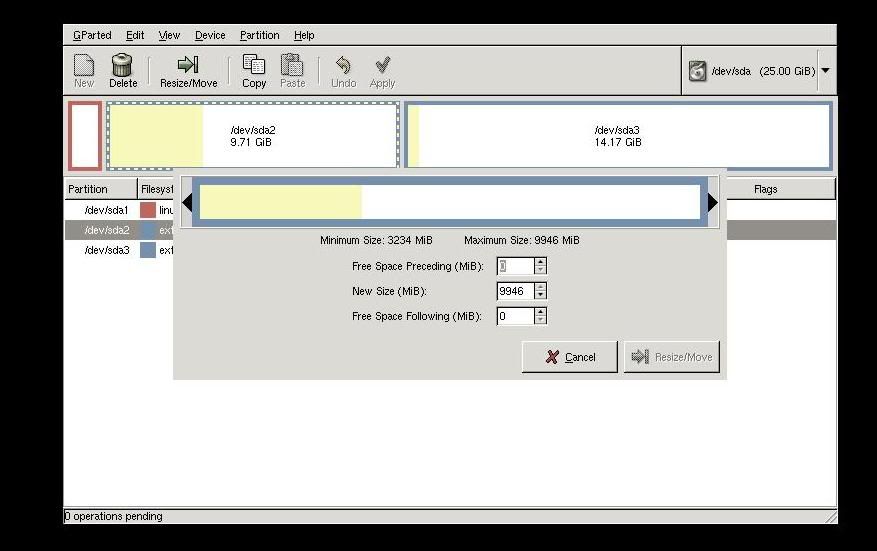
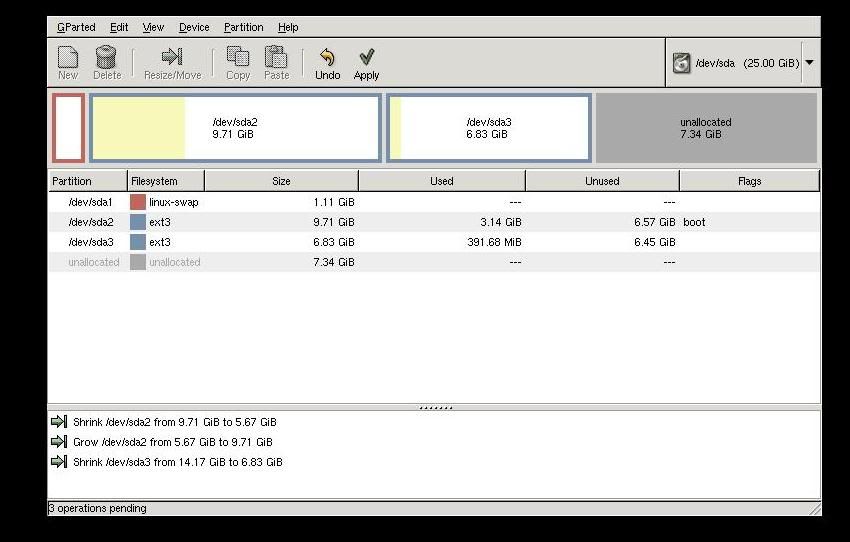
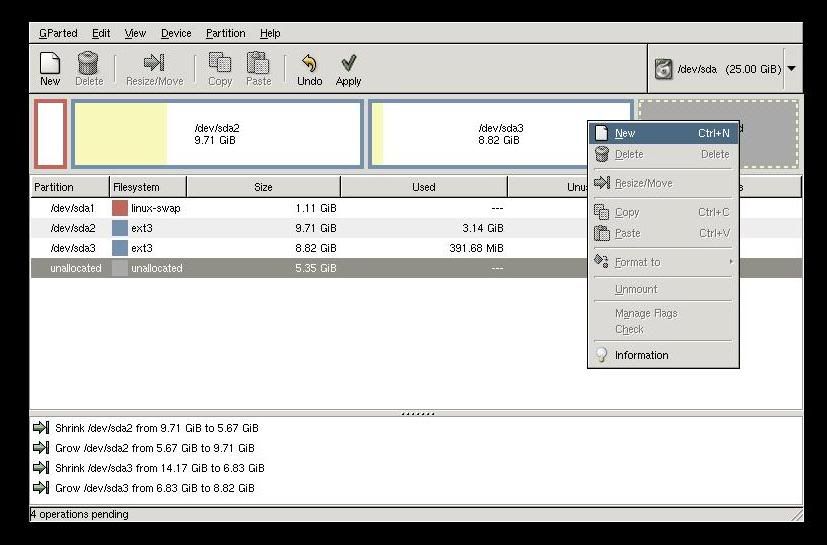
Well every problem has a solution but to do it you have to search for it, but some time you have to pay for that, don't be surprise I am not saying to pay me, I am just saying those tools require money.. here I will explain how to RESIZE THE PRELOADED OPERATING SYSTEM DRIVE with Gnome Partition Editor(gparted) its a freeware tool, so don't worry for its payment.
To use it follow the steps:-
1. Download the GParted (Genome Partition Editor) Live cd.
2. Then Burn it with Nero or any ISO burner software on a blank disk.
3. Boot the GParted CD
4.
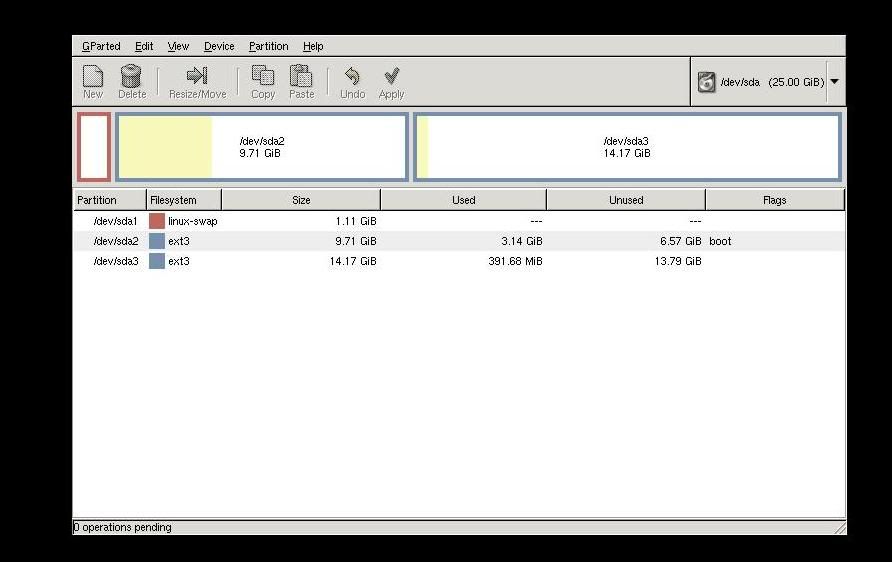
6. After it it show you your hard disk partition
7. Select your partition which you want to resize, right click on it and choose resize.

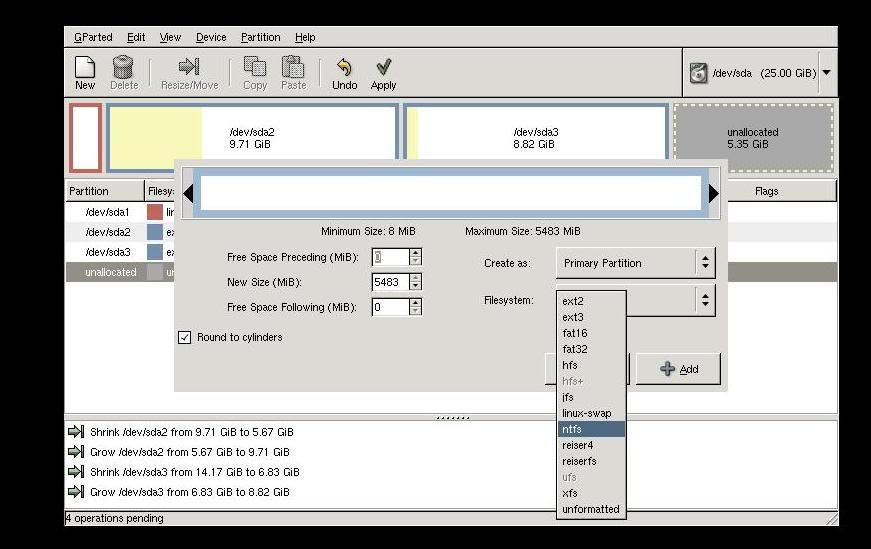
10. Now some unlocated space is created, just select it to make new partion and right click on, click on NEW tab
11. Format it with any desire partition table NTFS, FAT, ext2, ext3.. etc
12. Click apply it take some time to complete the process..
13.Then shutdown it and use as usual your window new partion start showing on you mycomputer (in Windows) and new partition on desktop( in Linux).
Well every problem has a solution but to do it you have to search for it, but some time you have to pay for that, don't be surprise I am not saying to pay me, I am just saying those tools require money.. here I will explain how to RESIZE THE PRELOADED OPERATING SYSTEM DRIVE with Gnome Partition Editor(gparted) its a freeware tool, so don't worry for its payment.
To use it follow the steps:-
1. Download the GParted (Genome Partition Editor) Live cd.
2. Then Burn it with Nero or any ISO burner software on a blank disk.
3. Boot the GParted CD
4.
5.Select the basic settings like keyboard, language etc.
6. After it it show you your hard disk partition
7. Select your partition which you want to resize, right click on it and choose resize.
8. Enter the space you require or can pulls it to decrise the size
9. click on apply
10. Now some unlocated space is created, just select it to make new partion and right click on, click on NEW tab
11. Format it with any desire partition table NTFS, FAT, ext2, ext3.. etc
12. Click apply it take some time to complete the process..
13.Then shutdown it and use as usual your window new partion start showing on you mycomputer (in Windows) and new partition on desktop( in Linux).
Labels:
Linux,
operating system,
partition,
Resize,
windows
Subscribe to:
Posts (Atom)